

What You Need
Before starting, confirm that you have:- The official Enigm Link USB.
- A supported computer with a direct USB port.
- Network connectivity.
- An Enigm Link entitlement managed through Enigm Command.
USB Layout
When the USB is opened from the host computer, Enigm Link exposes a simple visible layout: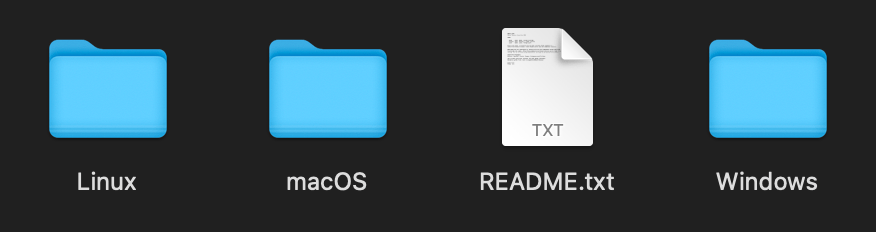
macOS
Desktop app for macOS hosts.
Windows
Desktop app for Windows hosts.
Linux
Desktop app for Linux hosts.
README
Basic product guidance.
Open The Secure Browser
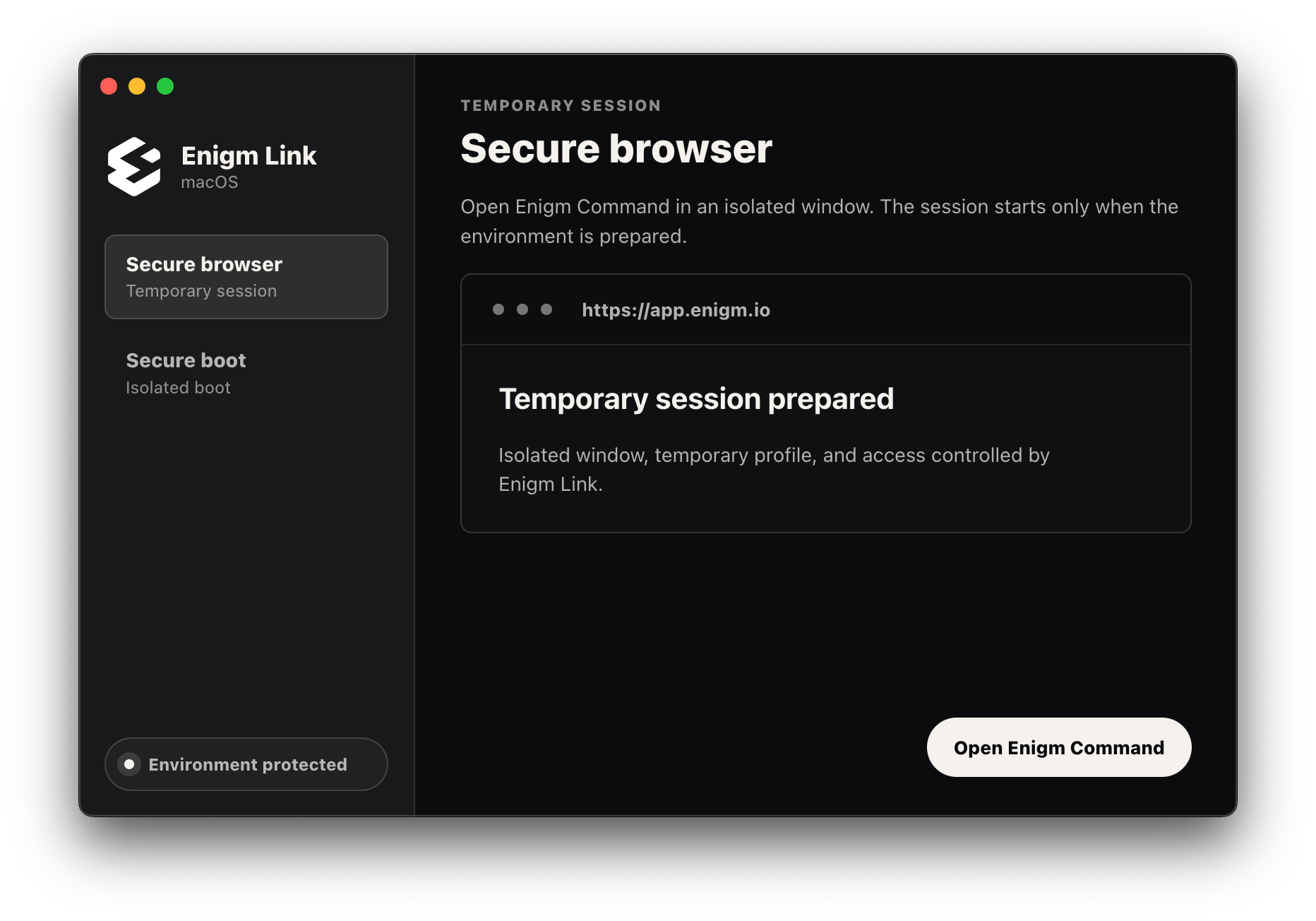
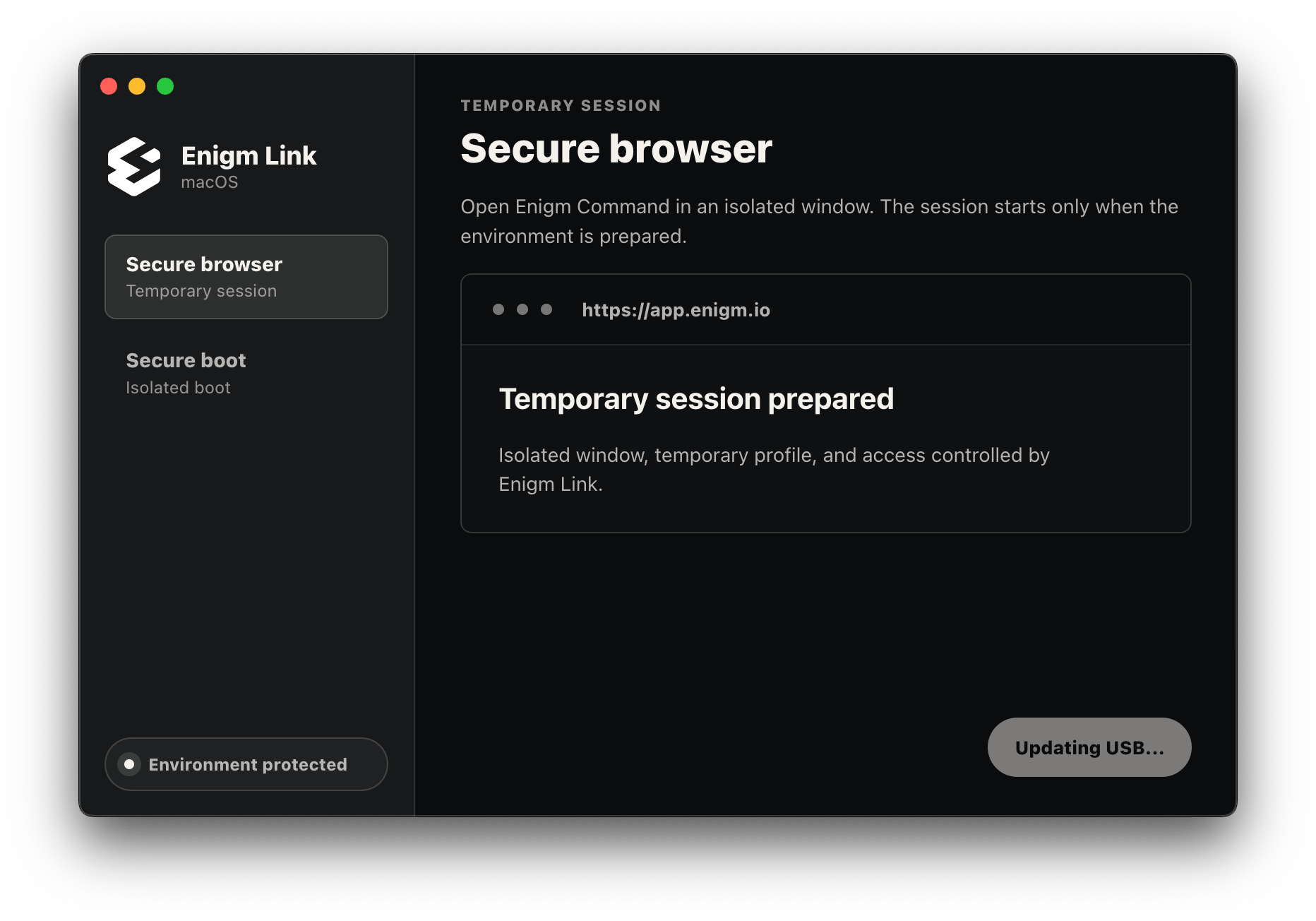
Open Enigm Link from the official USB. The desktop app prepares the protected environment and presents two primary modes:- Secure browser: opens Enigm Command in an isolated temporary browser window.
- Secure boot: guides compatible computers into the Enigm Link Boot OS environment.
Confirm Protected State
The secure browser flow should show that the temporary session is prepared and that the environment is protected. The protected state indicates that Enigm Link has prepared the controlled environment and validated the required product state. A normal network connection alone is not enough; protected state depends on Enigm Link environment preparation and product validation. The lower-left status pill indicates the current environment state:Environment protected
The protected environment is ready and the secure browser can be opened.
Protecting environment
Enigm Link is still preparing the environment. Wait until protection completes.
Environment not protected
The environment is not protected. The secure browser remains unavailable until protection is restored.
https://app.enigm.io in an isolated window with a temporary browser profile controlled by Enigm Link.
Browser Navigation
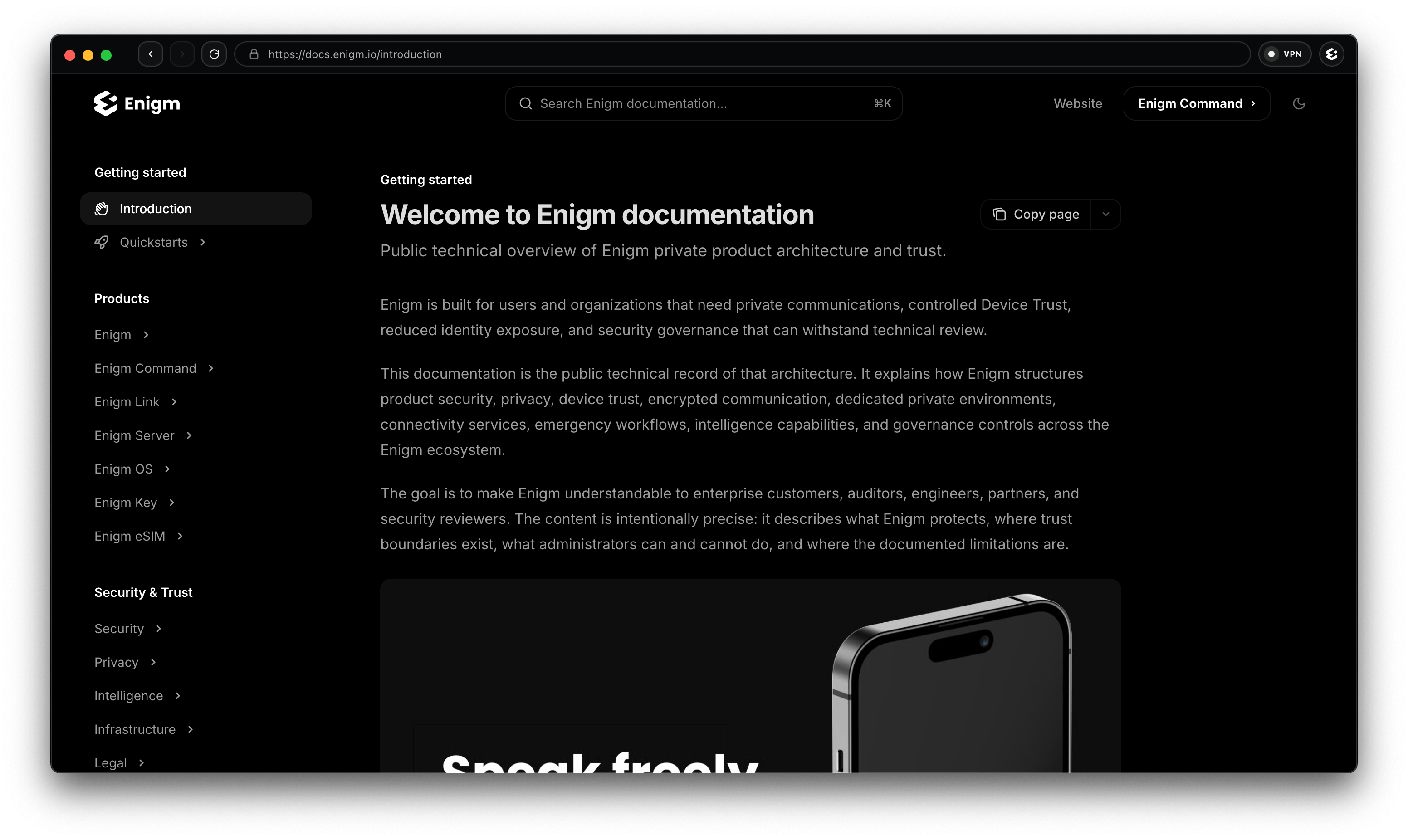
Inside the Enigm Link protected browser, the top-right VPN indicator shows the current VPN protection state. The Enigm logo button next to the VPN indicator opens product shortcuts for:- Enigm Command.
- Enigm Documentation.
- Enigm Status.
- Enigm Website.
Update Enigm Link
If an update is available, Enigm Link presents an Update Enigm Link action inside the product interface.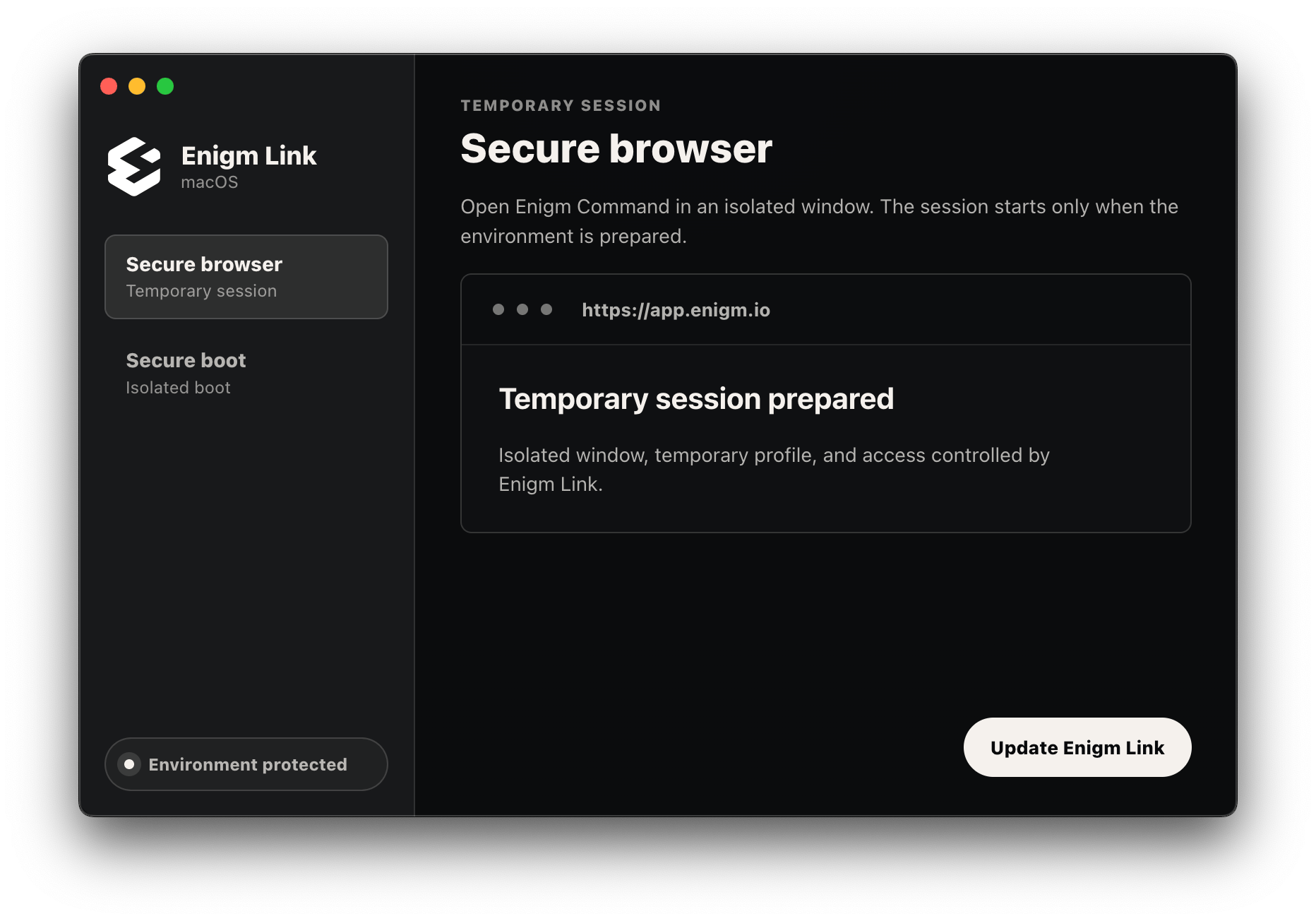
- Keep the USB connected.
- Keep the app open.
- Wait until the update state completes.
- Do not rename folders or move files while the update is running.
Verify Product Version
The Enigm Link app includes an About dialog with the current product version.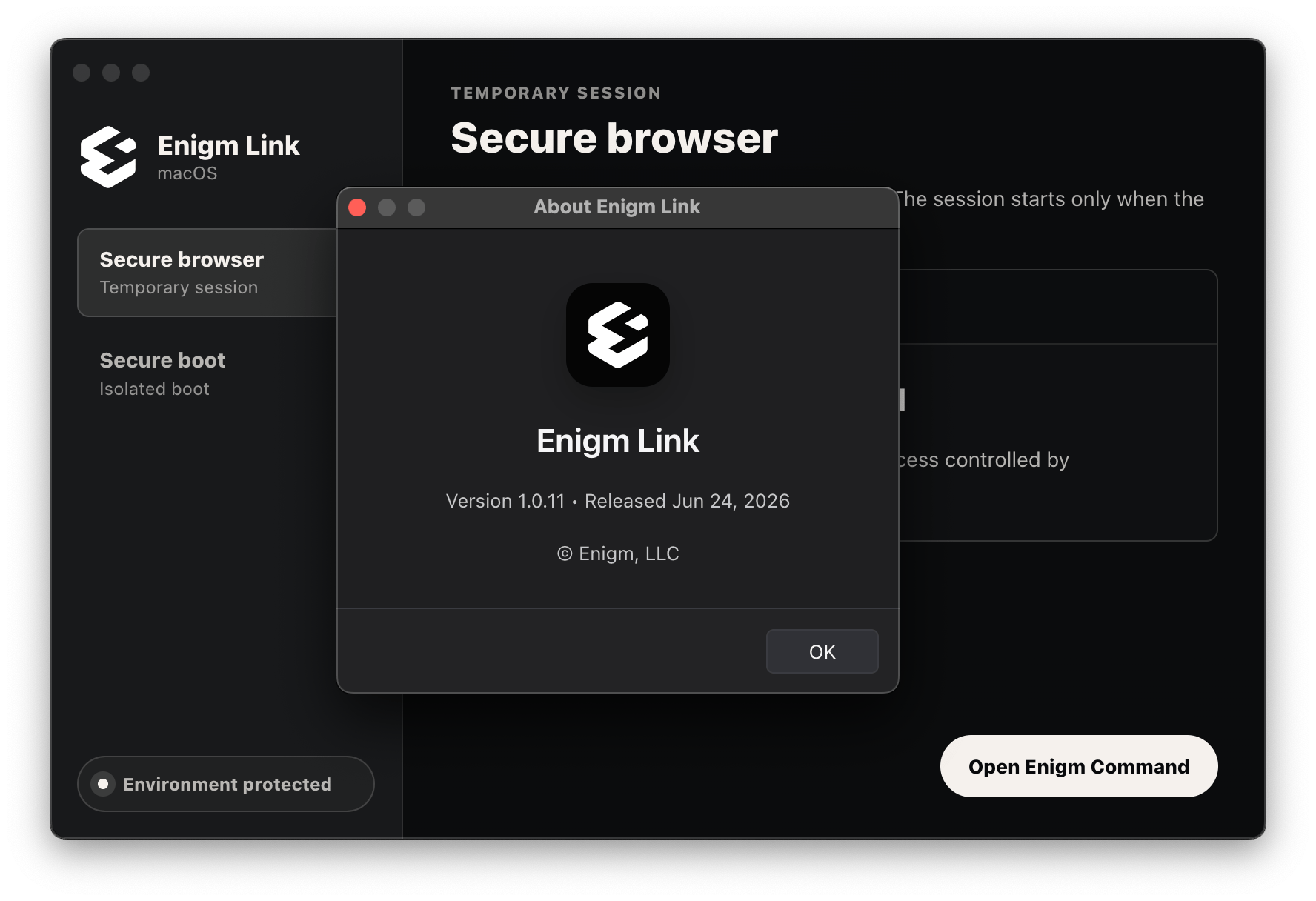
1.0.11, released on June 24, 2026.
Version information is useful for support and entitlement review through Enigm Command. It does not expose private user communications or Enigm account content.
Start Boot OS Mode
Use Secure boot when you want to start Enigm Link Boot OS from the official USB on a compatible computer. Current Boot OS support:PC UEFI
Supported.
Mac Intel
Supported.
Apple Silicon
Not supported for Boot OS USB in the current build.
Secure Boot Flow
The secure boot flow is intentionally guided. Follow the product prompts in order.1
Shut down completely
Save your work and shut down the computer. Do not use sleep or hibernation. Enigm Link Boot OS should start from a clean boot.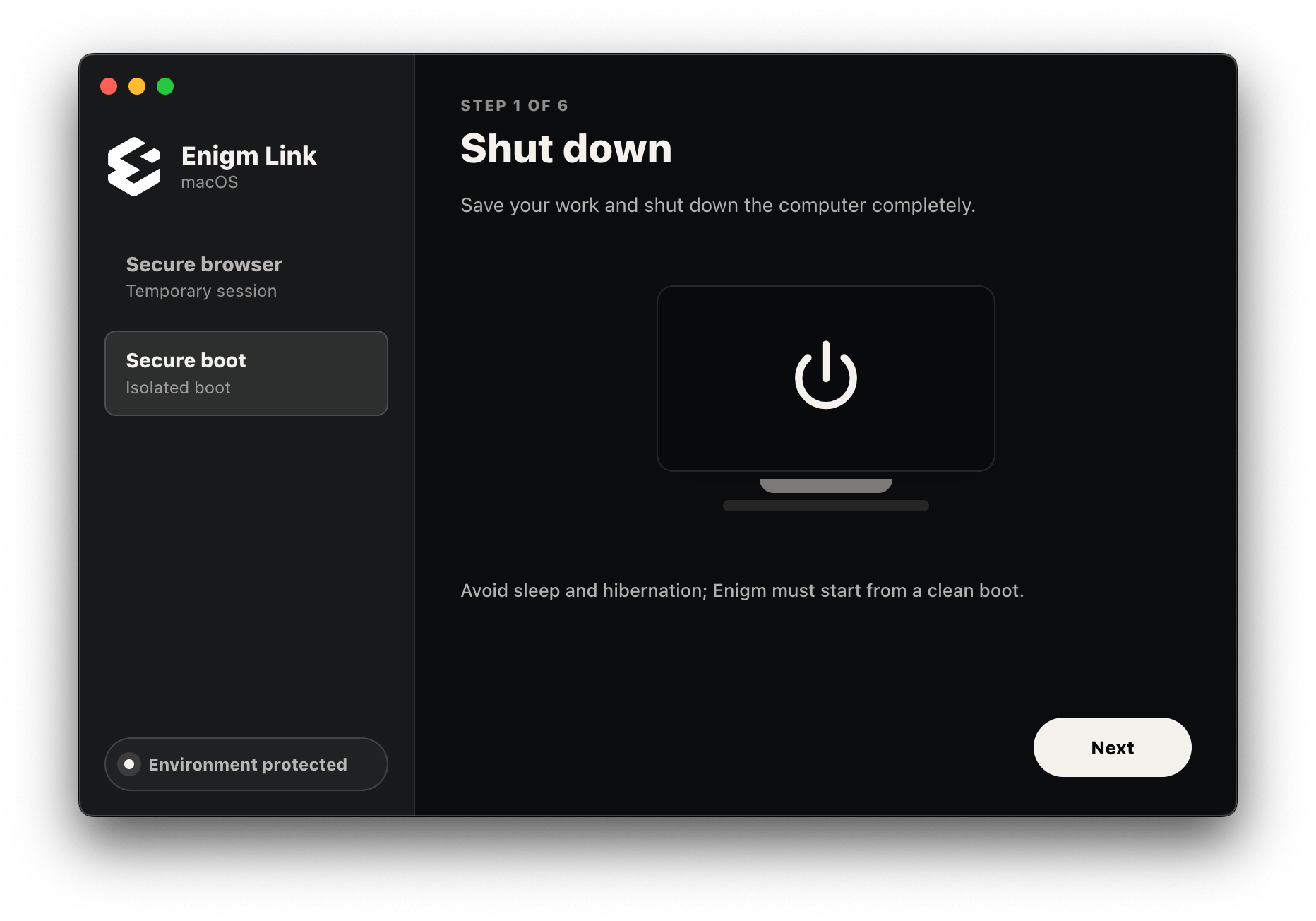
2
Connect the USB
Insert the official Enigm Link USB directly into the computer. A direct USB port is preferred for the most stable startup.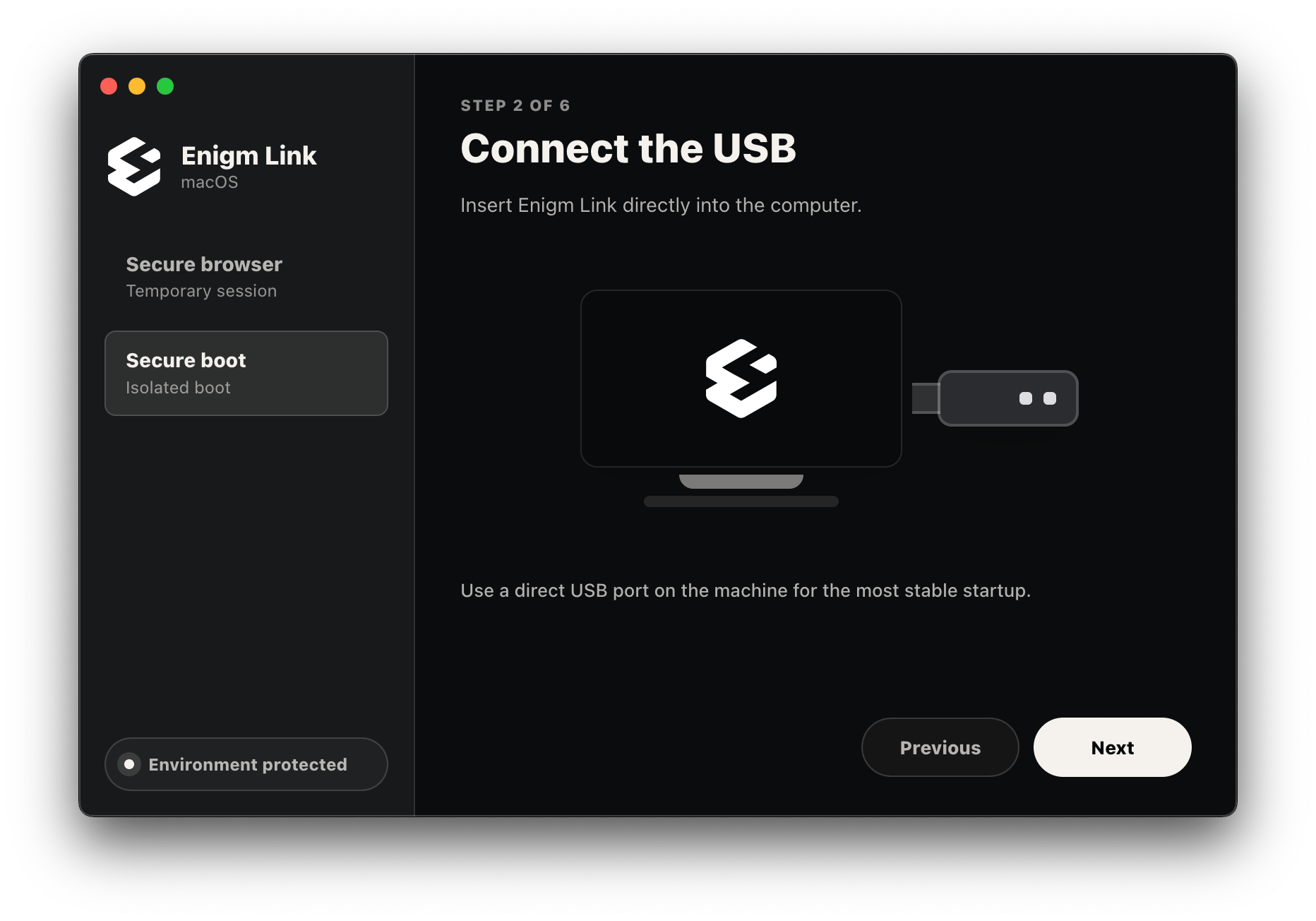
3
Open the boot menu
Power on the computer and open the boot menu immediately. Common keys include 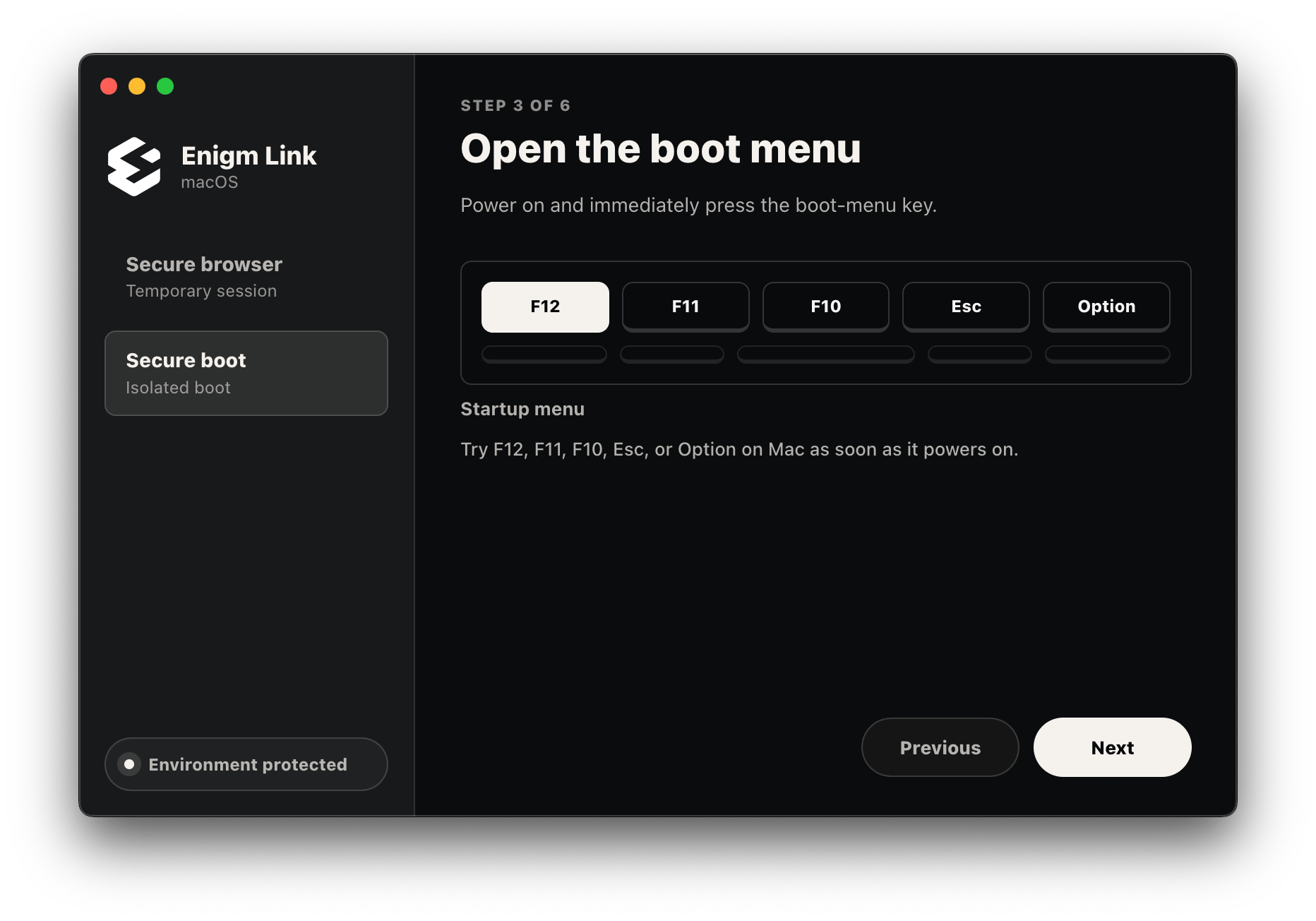
F12, F11, F10, Esc, or Option on Mac.4
Choose the Enigm USB
Select the Enigm Link USB entry. If the same USB appears twice, select the 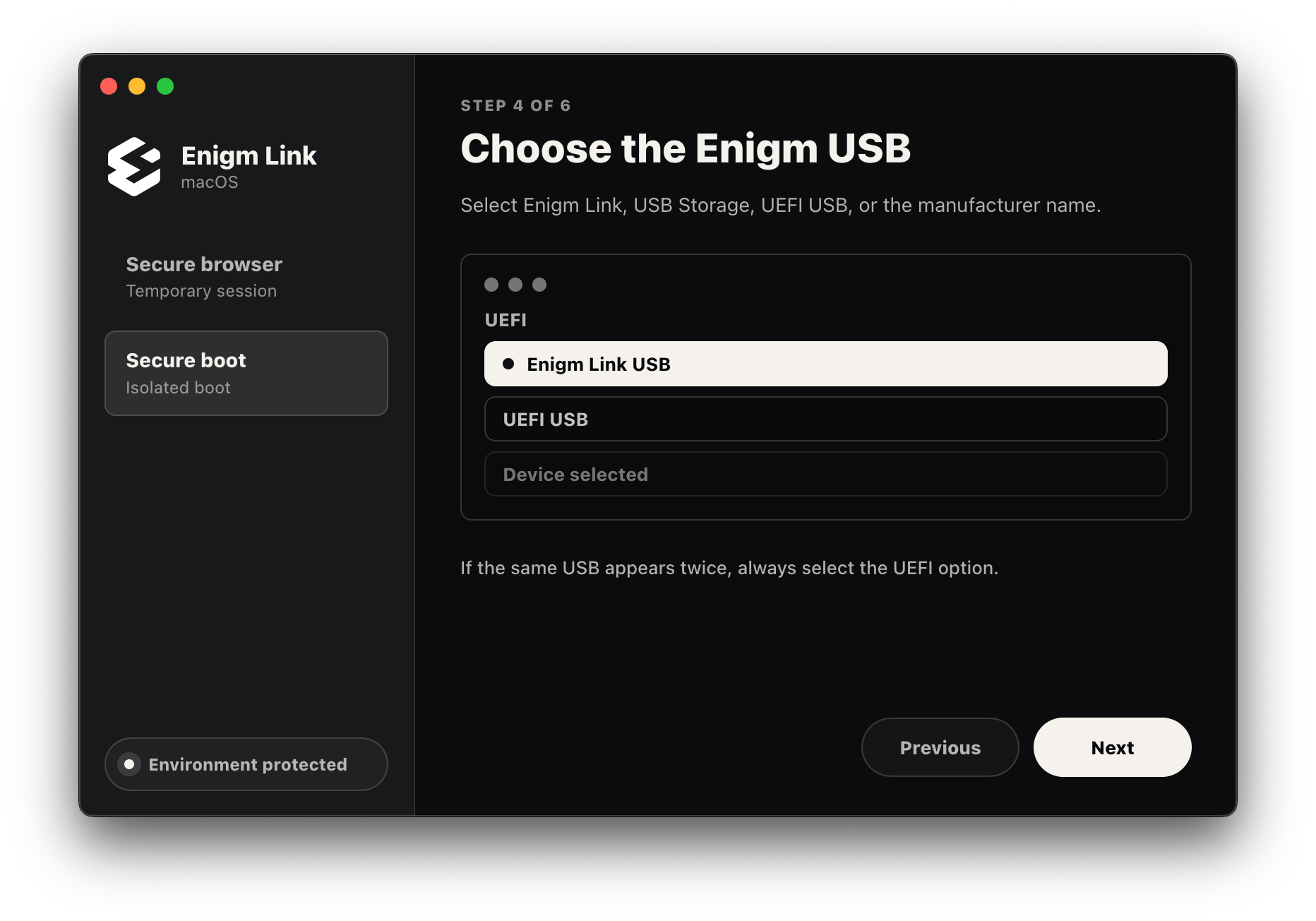
UEFI option.5
Wait for the protected environment
Let the USB load until the protected browser opens. Enigm Link runs isolated from the installed computer session.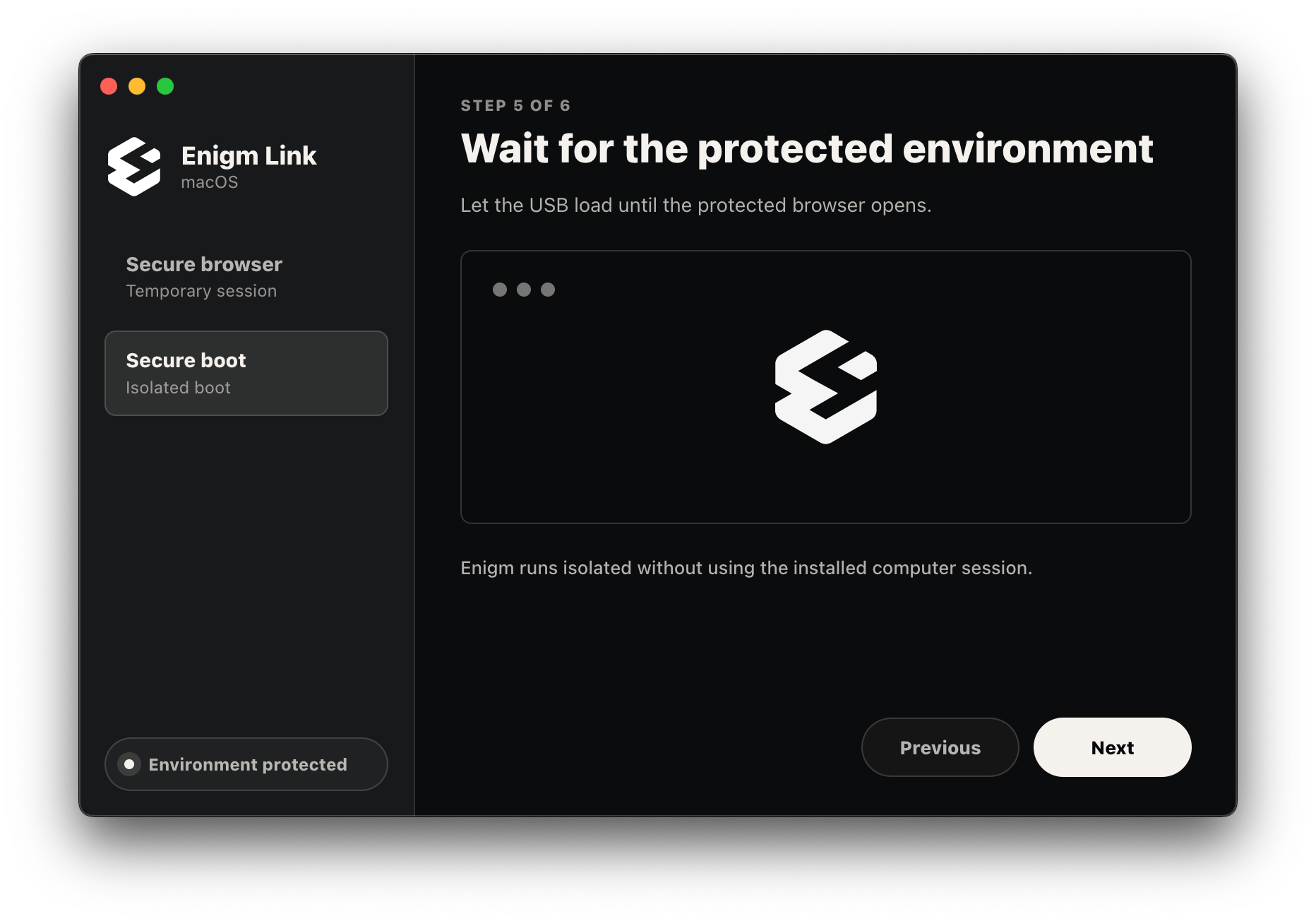
6
Finish safely
Sign out of Enigm, shut down from the protected environment, and remove the USB only after the machine is completely powered off.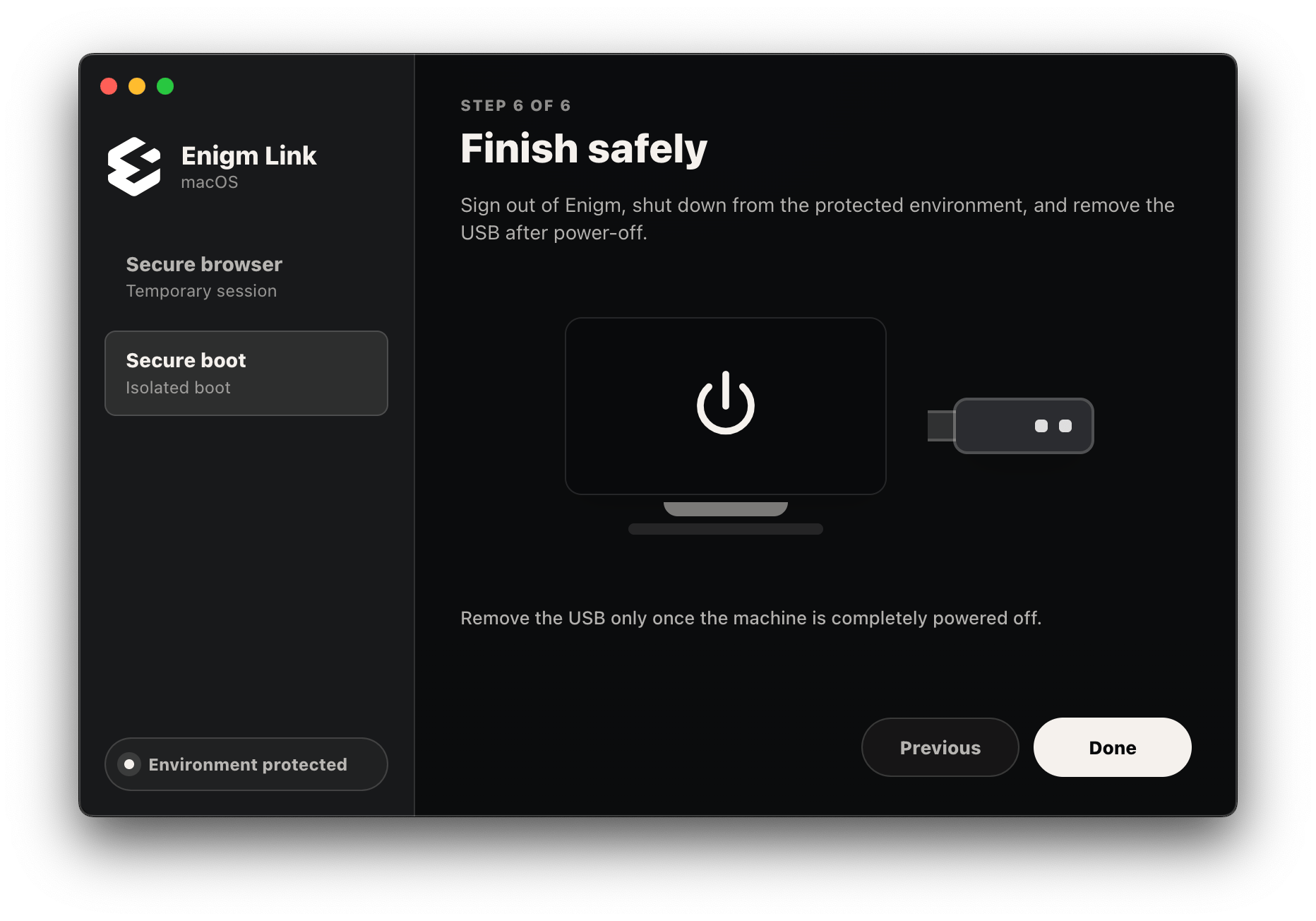
Use Boot OS Home
After Enigm Link Boot OS finishes loading, the first screen asks you to select the interface language for the temporary session. Select the language and continue.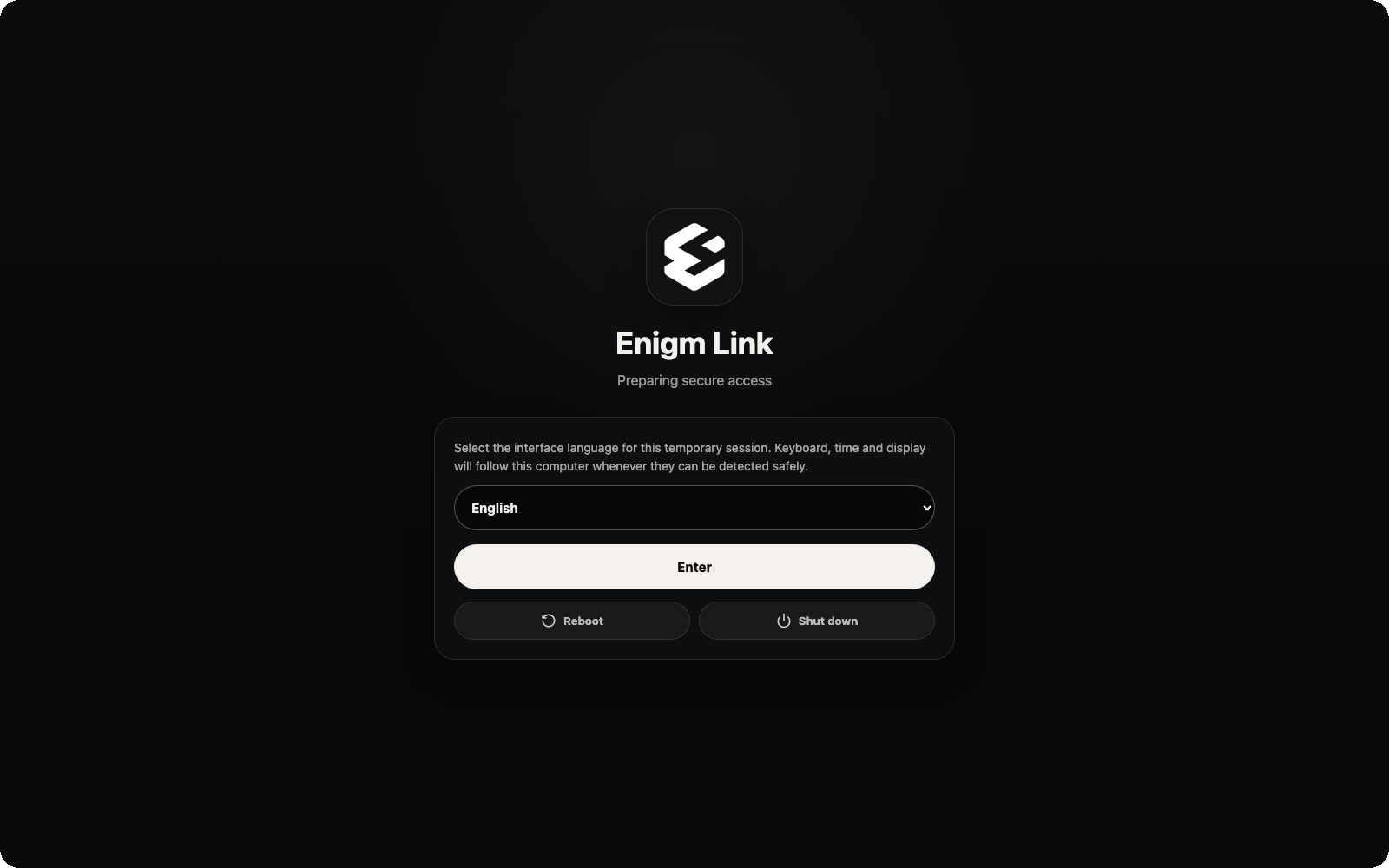
Enigm Command
Opens Enigm Command inside the protected Boot OS session.
Documentation
Opens Enigm documentation and support material.
Status
Opens Enigm platform availability information.
Public Web
Opens the public Enigm website.
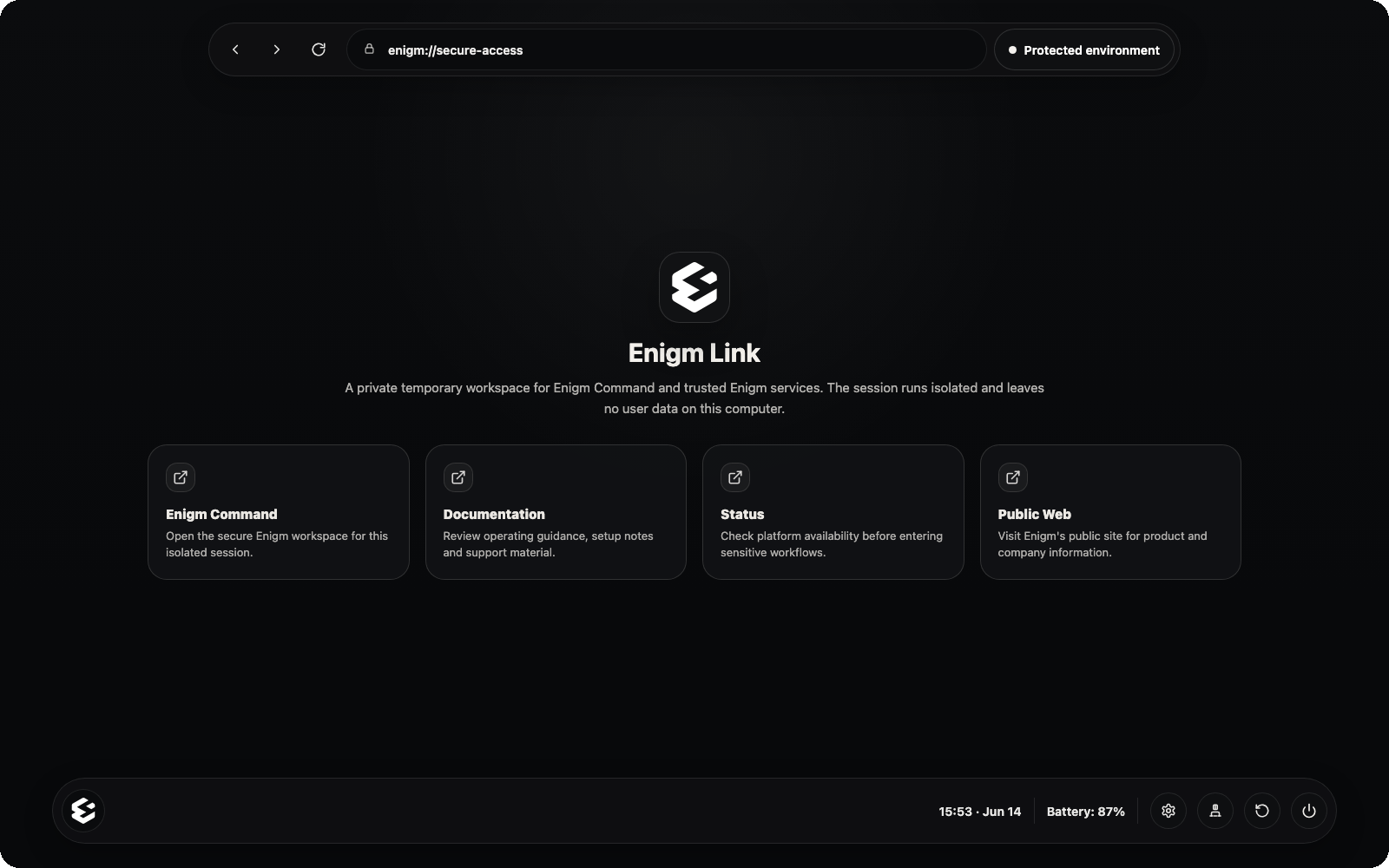
- Power: shuts down the protected Boot OS session.
- Restart: restarts the Boot OS environment.
- Network: opens network controls and Wi-Fi connection options.
- Settings: opens language, keyboard, and time zone settings.
Finish Safely
When the session is complete:- Sign out of Enigm Command.
- Close the secure browser or shut down from the protected Boot OS environment.
- Wait until the computer is fully powered off before removing the USB.
Troubleshooting
Common user-facing cases:- The environment is not protected: wait for Enigm Link to finish preparing the environment, then retry from the official USB.
- The update button appears: run the update from inside Enigm Link and keep the USB connected until completion.
- The USB appears twice in the boot menu: select the
UEFIentry. - The boot menu does not appear: restart and try the boot-menu keys shown by the product flow.
- Apple Silicon does not show USB boot: use the normal macOS Enigm Link app. Boot OS USB is not supported on Apple Silicon in the current build.
Security Boundaries
Enigm Link provides a controlled Enigm access environment, not a guarantee that every host computer, website, or user action is safe. Enigm Link does not replace:- Enigm App end-to-end encryption.
- Enigm Command account controls.
- User verification decisions.
- Host-device security awareness.
- Safe handling of downloaded files or credentials.