

https://app.enigm.io. The flow creates the account, selects a subscription plan, completes payment, creates the account PIN, saves the recovery words, and opens the account-ready state.
The screenshots show Enigm Command with example values. Do not use public examples as real credentials, PINs, payment information, or recovery material.
What You Need
Before starting, confirm that you have:- Access to
https://app.enigm.io. - A username you want to use for your Enigm account.
- A password that meets the account requirements.
- A supported payment method.
- A private place to save your recovery words.
Setup Flow
Follow the product prompts in order. Do not skip the recovery-word step; recovery words are required if you later need to recover access.1
Start registration
Open
https://app.enigm.io. If you do not already have an account, select Sign up from the sign-in screen.Existing users can sign in from this screen instead of starting registration.2
Create your account
Enter the username and password for the new account, repeat the password, review the terms and privacy links, and continue.The username is part of the account identity. Choose it carefully and avoid placing sensitive personal information in the username unless your use case requires it.Passwords must include: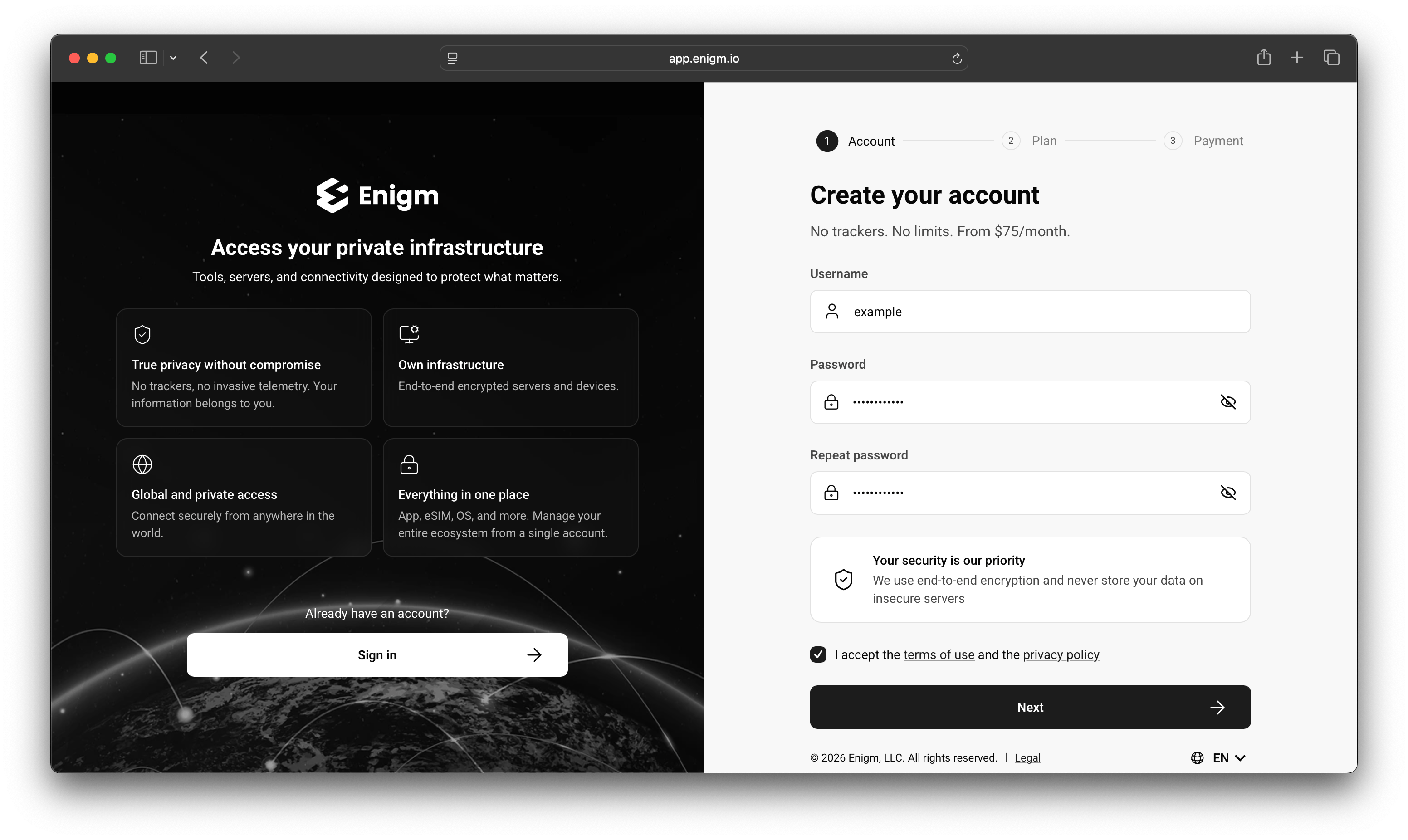
- An uppercase letter.
- A lowercase letter.
- A special character.
- At least 12 characters.
3
Choose a plan
Review the available plan options and billing terms shown in Enigm Command. Select the plan that matches your intended use, then continue.The plan screen can show annual and monthly options. Current prices, taxes, discounts, supported payment methods, and billing terms should be confirmed in Enigm Command before continuing.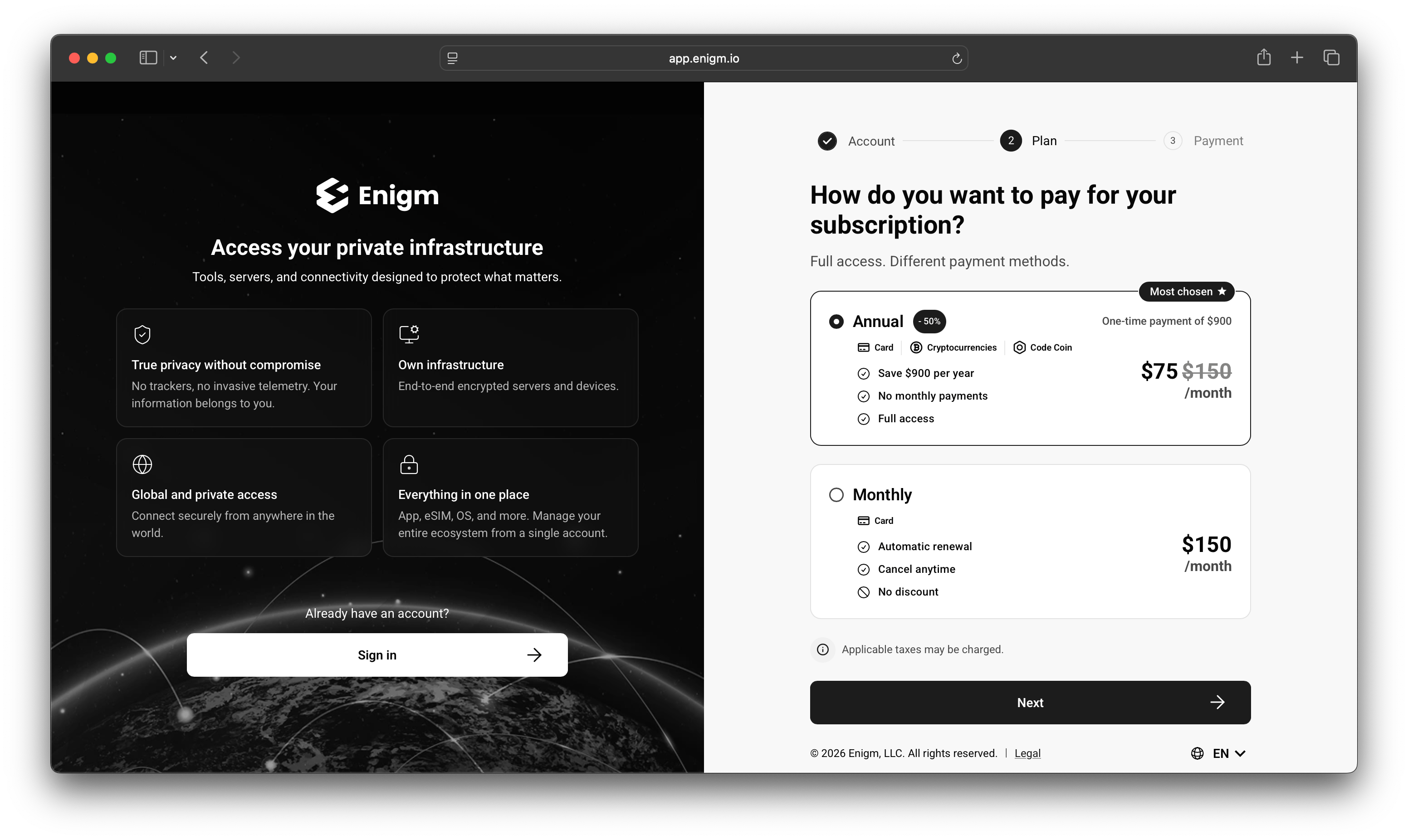
4
Complete payment
Select the available payment method you want to use. Enigm Command can present card payment, cryptocurrency payment, and Code Coin payment-code options depending on current availability and account eligibility.Payment-method availability, processing requirements, taxes, and final amounts can vary by region, time, payment method, and commercial terms. Review the product screen before confirming payment.
5
Create your PIN
After payment, create the account PIN requested by the setup flow. The PIN protects account access and sensitive account workflows after authentication.Use a PIN that you can remember and do not share it with other people.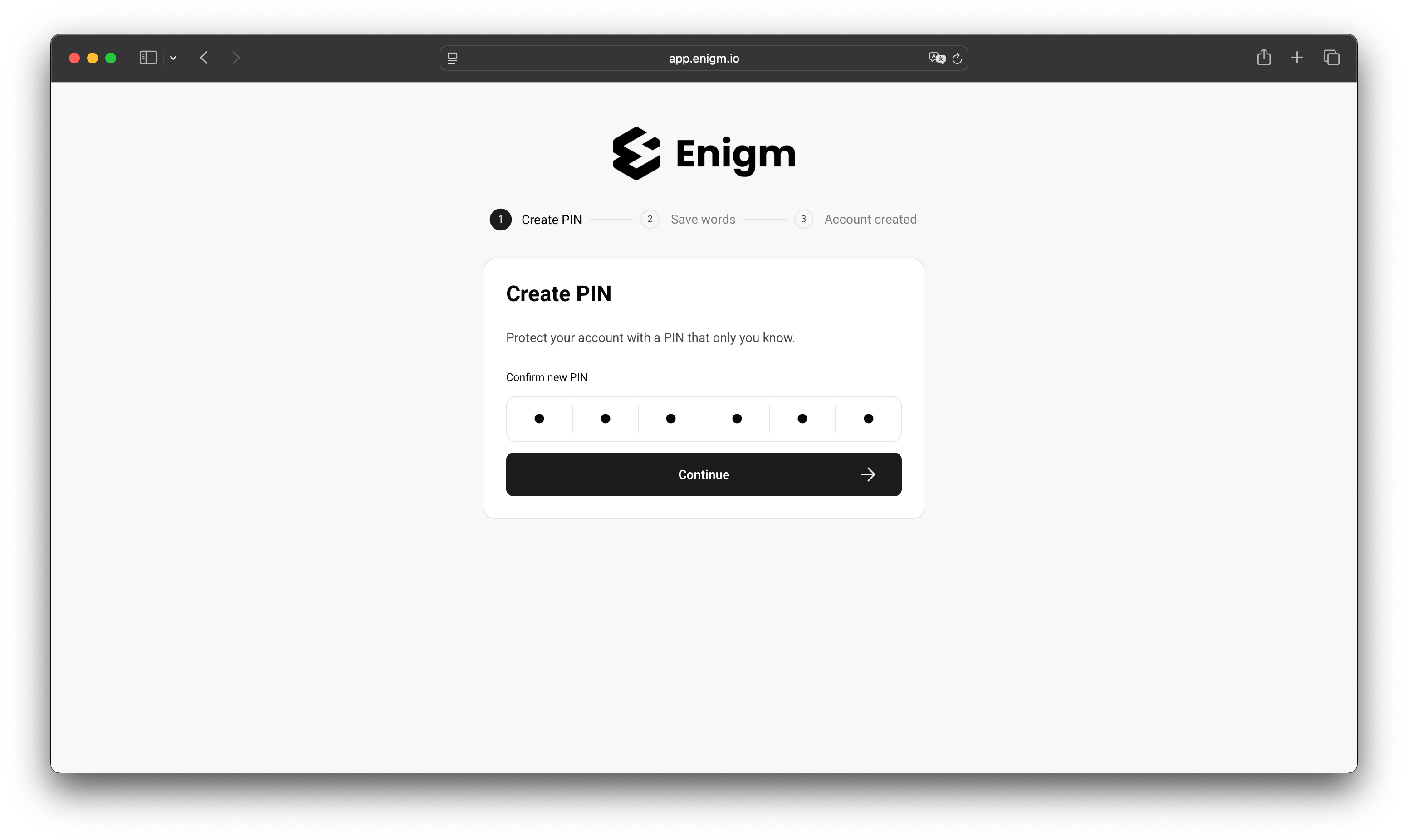
6
Save your recovery words
Enigm shows recovery words during account setup. Save them in a private, durable place before continuing.Recovery words are sensitive. Anyone who obtains them may be able to take control of the account. Enigm cannot recover them for you if you lose them.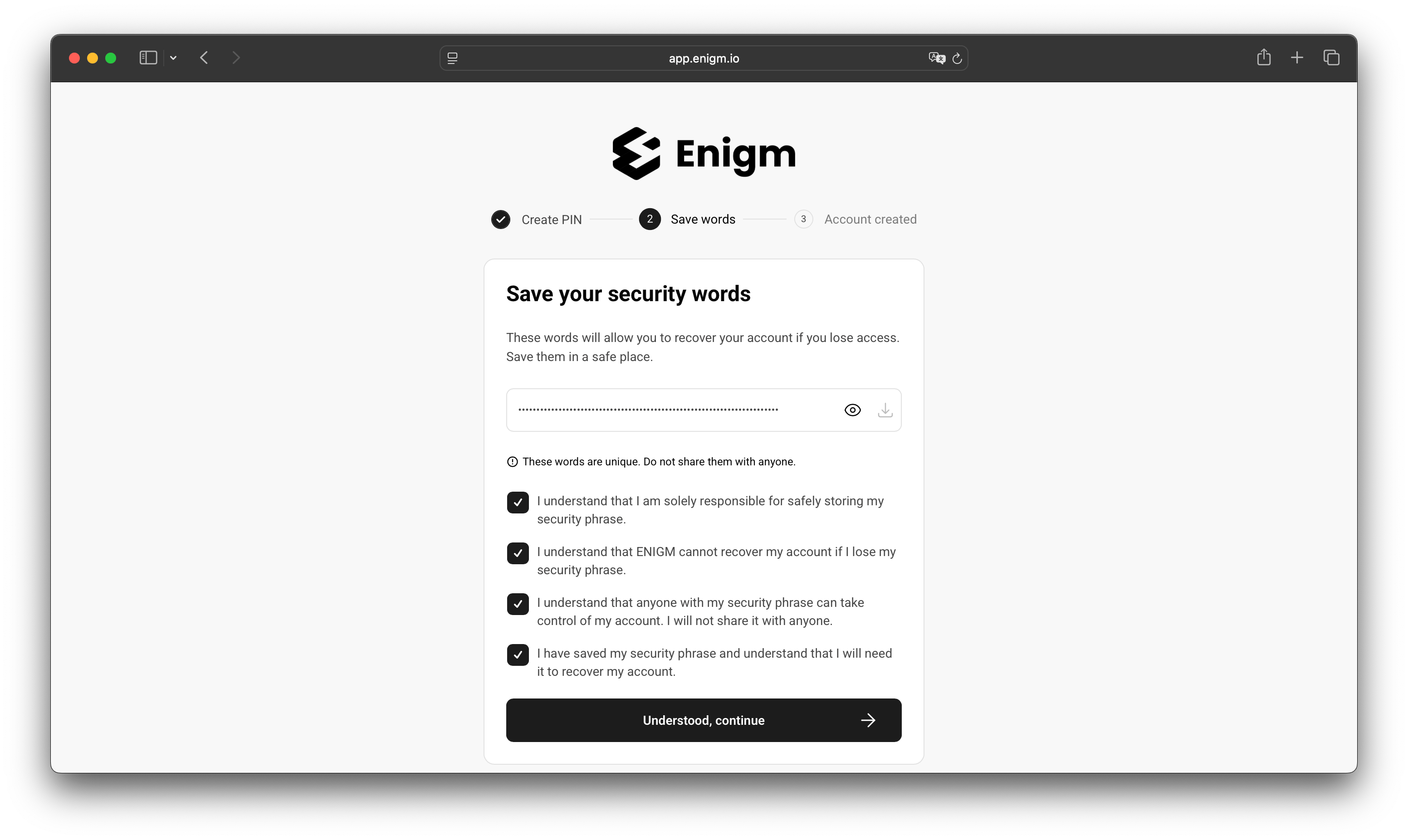
7
Finish setup
When the account-ready screen appears, the initial account setup is complete.From this screen, you can continue to Enigm Command or download the Enigm application when available for your platform and deployment.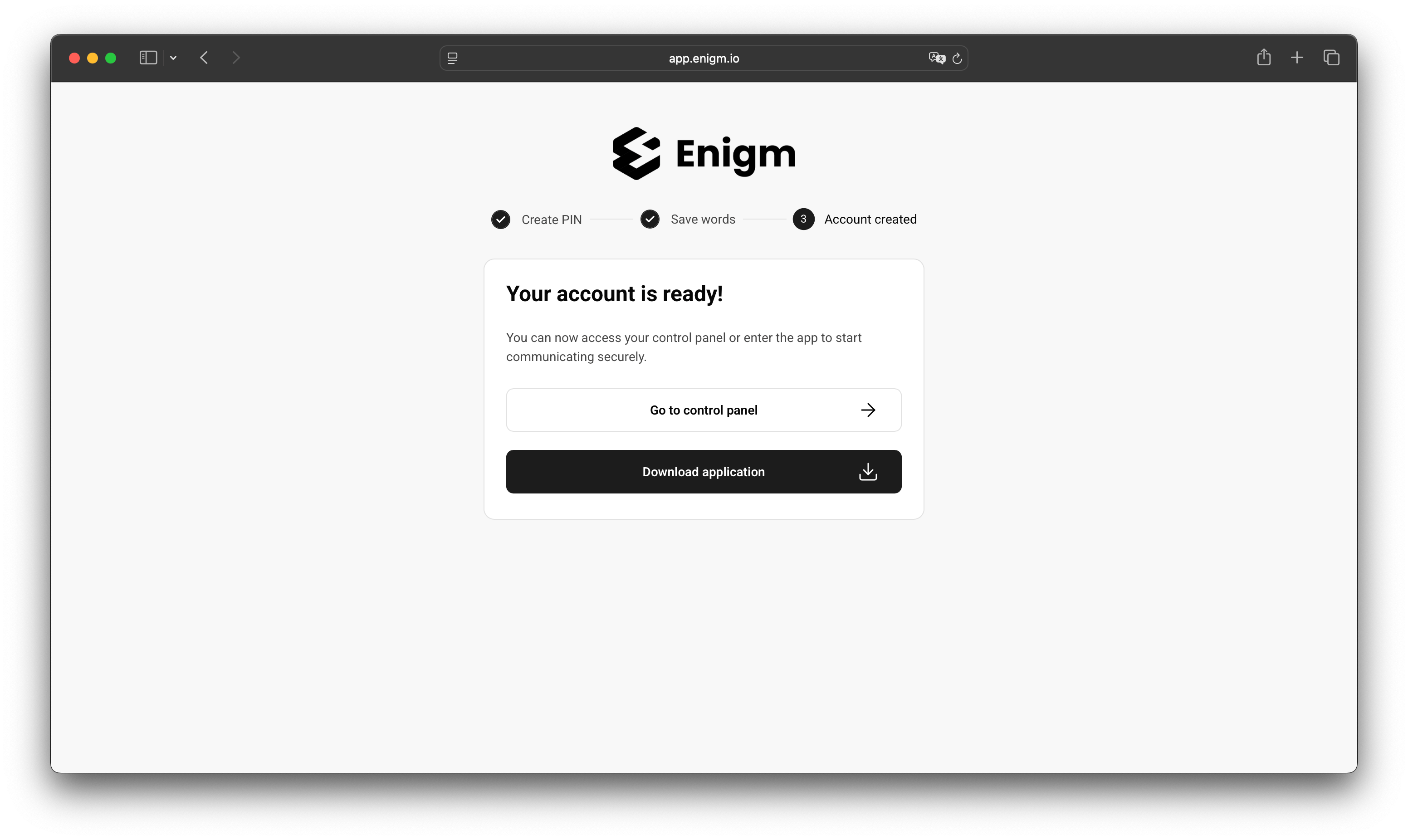
After Setup
After the account is created, use Enigm Command to manage account lifecycle, products, payment state, devices, sessions, Enigm eSIM, Enigm Server, Enigm Link, Enigm Key, and supported administrative workflows. Use Enigm App for private messaging, secure calls, Device Trust workflows, PIN-gated app access, network privacy controls, and account-associated app usage.Security Notes
- Keep your password, PIN, and recovery words private.
- Save recovery words before leaving the recovery step.
- Do not share screenshots that reveal account identifiers, payment details, recovery words, or other sensitive account material.
- Review terms, privacy information, plan terms, taxes, and final payment amount before confirming.
- Sign out on shared or untrusted devices.