> ## Documentation Index
> Fetch the complete documentation index at: https://docs.enigm.io/llms.txt
> Use this file to discover all available pages before exploring further.

# Enigm OS Quickstart

> User guide for completing the Enigm OS first-run setup wizard.

This quickstart explains the user-facing Enigm OS first-run setup flow. The wizard establishes the initial device baseline before normal use, including language selection, connectivity, time configuration, optional biometric enrollment, appearance, and transition into the Enigm experience.

Enigm OS setup is designed to be direct and security-focused. It avoids general-purpose account ecosystems and keeps onboarding centered on the controls required to start the device safely.

## What You Need

Before starting, confirm that you have:

* A supported Fairphone 6 Enigm OS device with sufficient battery.
* Network access through Wi-Fi, mobile connectivity, or the deployment network available to the device.
* The credentials or enrollment information required by your Enigm deployment.
* Physical control of the device during setup.

Enigm OS is currently supported only on Fairphone 6. This quickstart should not be used as production guidance for unsupported device models.

During onboarding, complete any device authentication, PIN, or enrollment screens presented by the device before continuing into normal use.

## Setup Wizard Flow

The setup wizard is intentionally guided. Follow the product prompts in order.

<Steps>
  <Step title="Start Enigm OS">
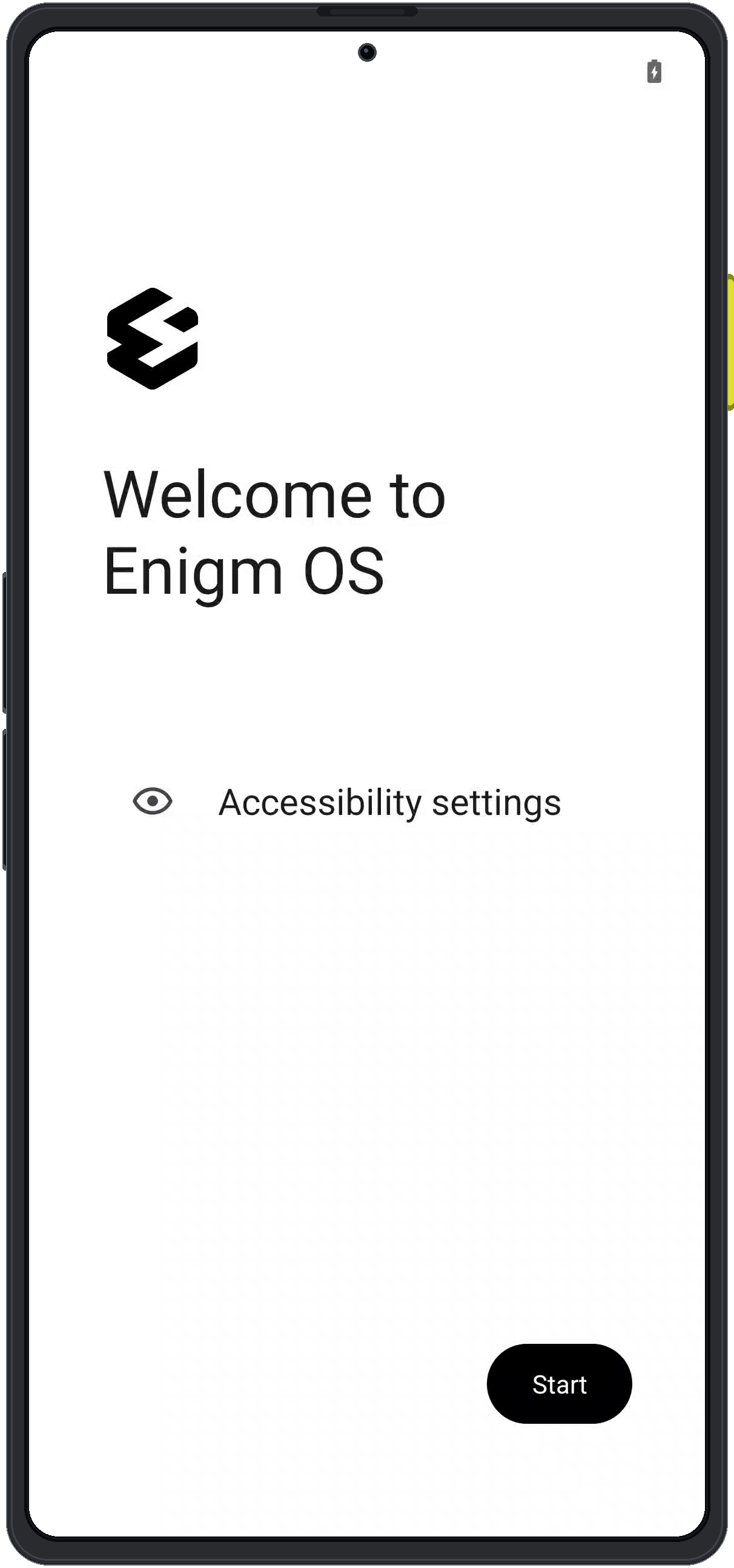
    The welcome screen confirms that the device is entering the Enigm OS setup flow. Use accessibility settings if required, then select **Start**.

    <div className="enigm-phone-step">
      <img src="https://mintcdn.com/enigm/_vgDUQTIra3AYjLA/assets/images/os/os-wizard-01-welcome.png?fit=max&auto=format&n=_vgDUQTIra3AYjLA&q=85&s=e9cfe465346b885b00bc28534ea786e1" alt="Enigm OS welcome screen" width="1212" height="2588" data-path="assets/images/os/os-wizard-01-welcome.png" />
    </div>
  </Step>

  <Step title="Select language">
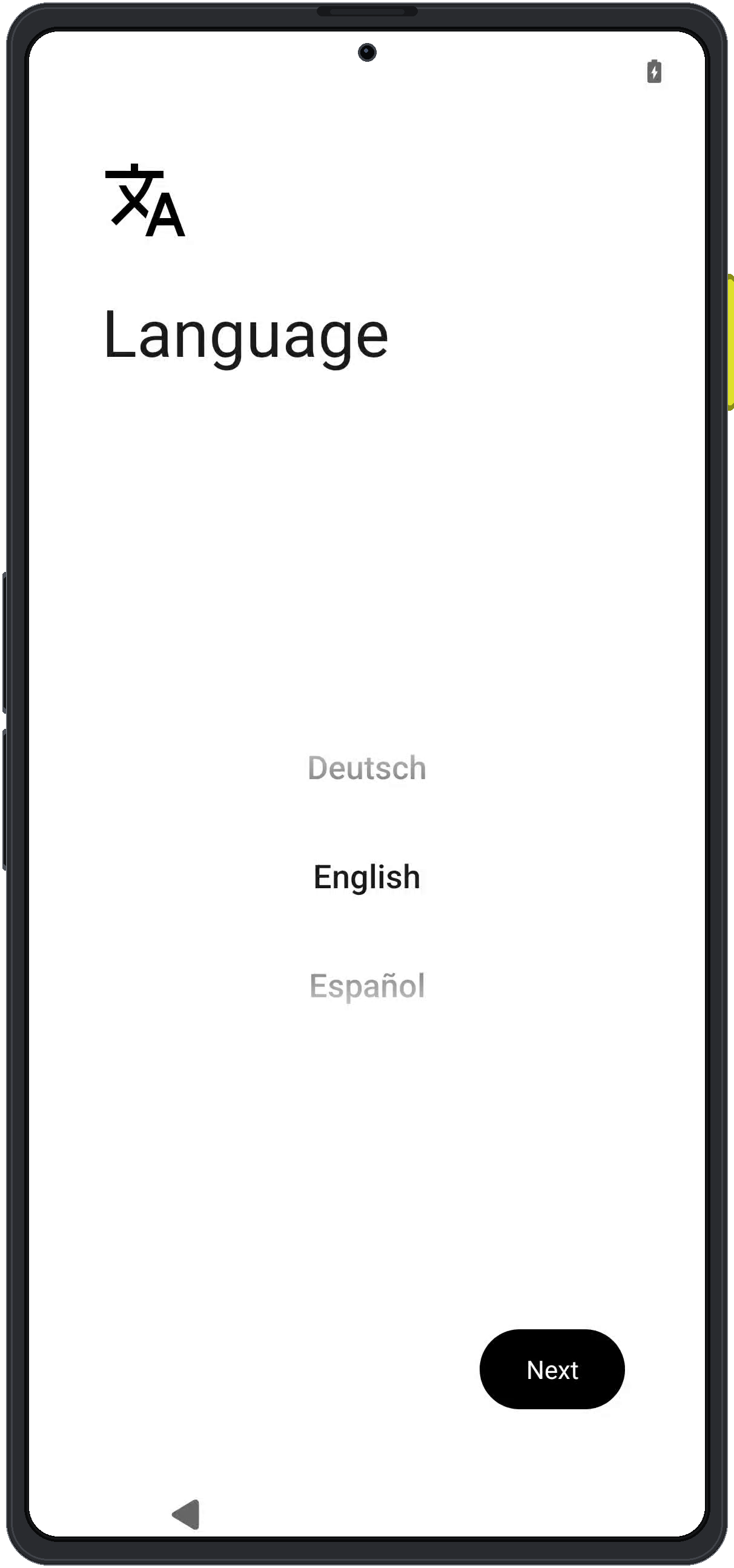
    Choose the interface language for the device. Language selection affects the setup experience and the device UI after onboarding.

    <div className="enigm-phone-step">
      <img src="https://mintcdn.com/enigm/_vgDUQTIra3AYjLA/assets/images/os/os-wizard-02-language.png?fit=max&auto=format&n=_vgDUQTIra3AYjLA&q=85&s=827ea7474911d625f5a088b56532cfb9" alt="Enigm OS language selection screen" width="1212" height="2588" data-path="assets/images/os/os-wizard-02-language.png" />
    </div>
  </Step>

  <Step title="Review mobile connectivity">
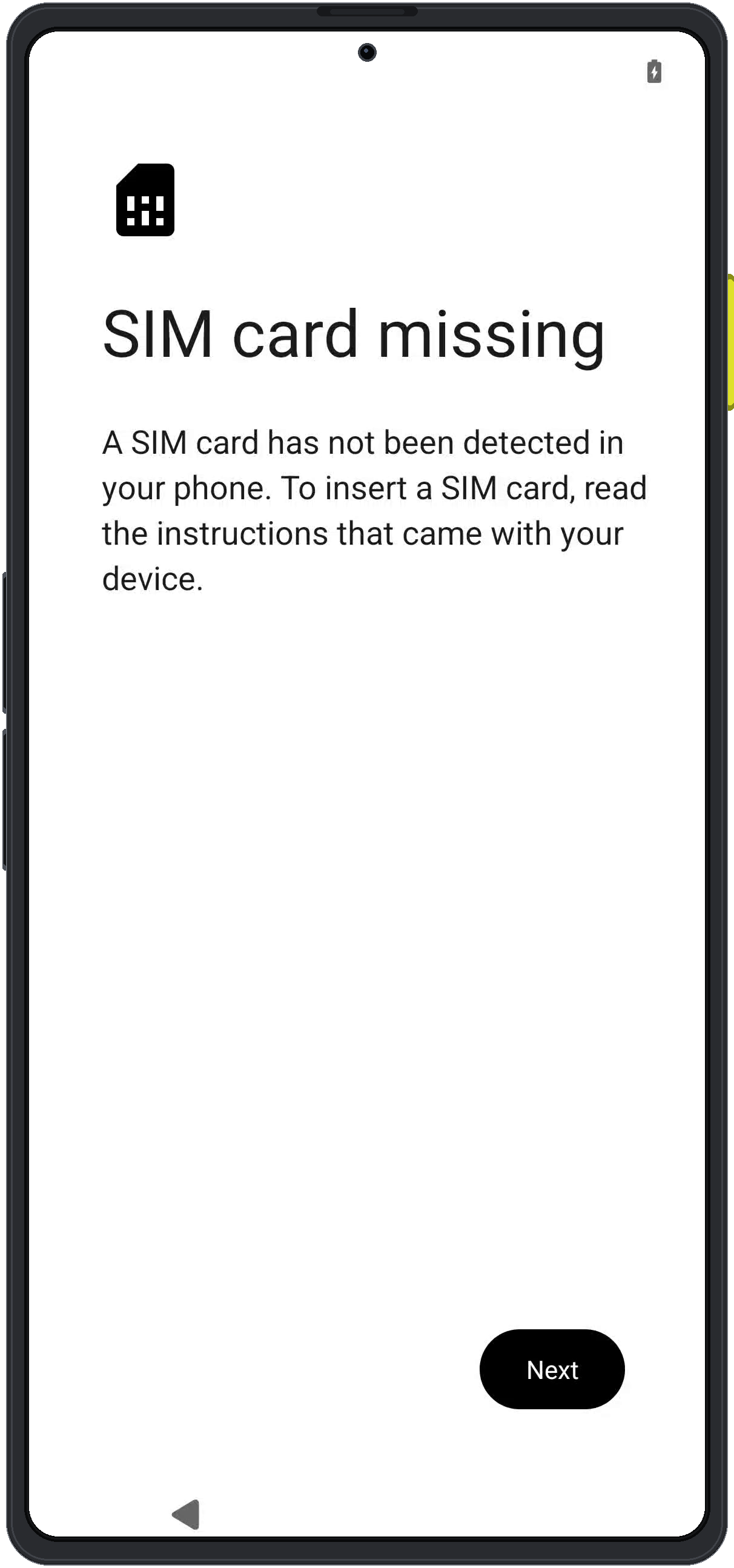
    Enigm OS checks physical SIM connectivity before continuing. If no physical SIM is detected, continue with the available setup path and configure Wi-Fi or another permitted network path. Enigm eSIM is associated after the wizard from Enigm OS settings.

    <div className="enigm-phone-step">
      <img src="https://mintcdn.com/enigm/_vgDUQTIra3AYjLA/assets/images/os/os-wizard-03-sim-missing.png?fit=max&auto=format&n=_vgDUQTIra3AYjLA&q=85&s=17de7990c25a9e154e28416df0b96cf9" alt="Enigm OS SIM card missing screen" width="1212" height="2588" data-path="assets/images/os/os-wizard-03-sim-missing.png" />
    </div>
  </Step>

  <Step title="Configure Internet access">
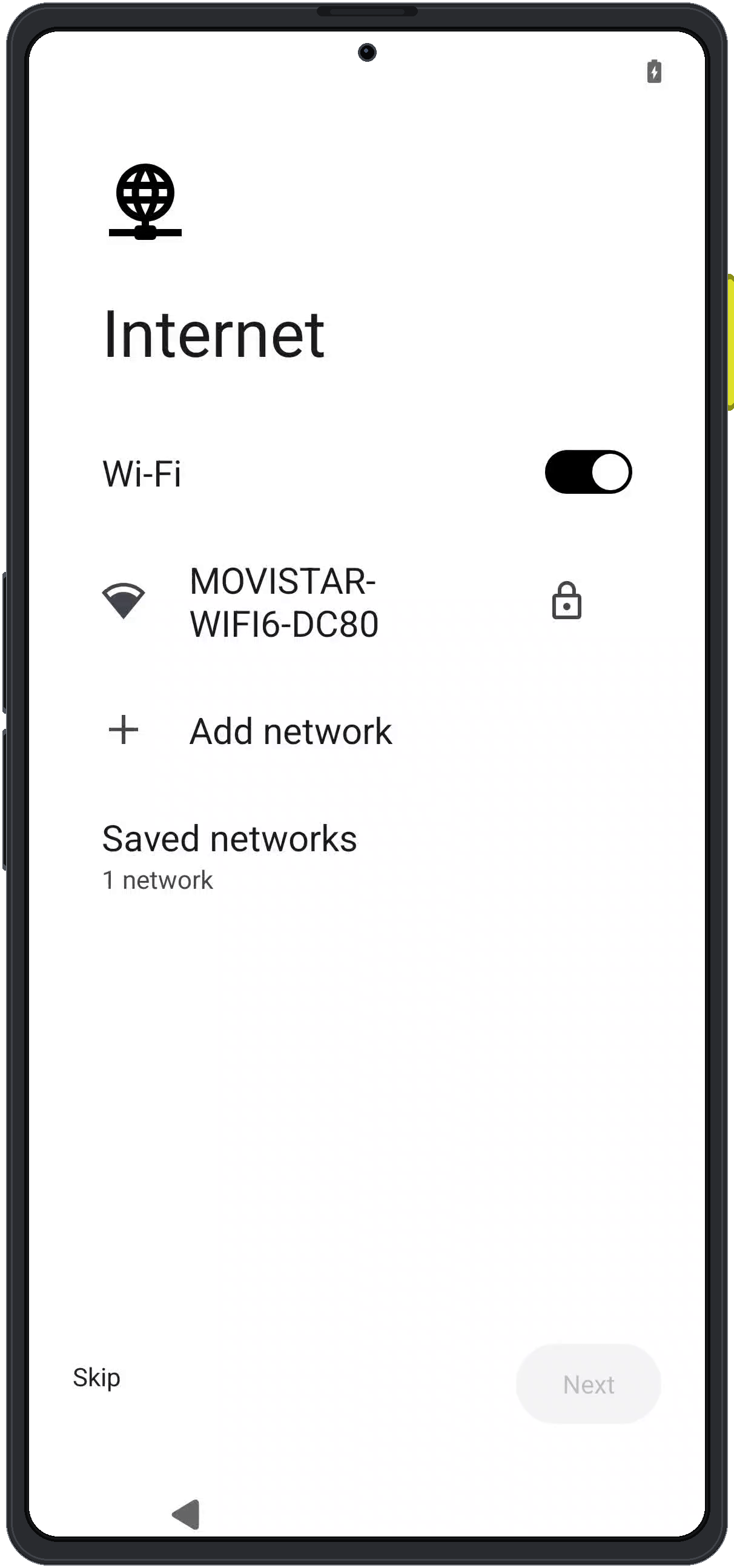
    Configure Wi-Fi or another permitted network path. Network access supports setup completion, activation, policy retrieval, and account or device enrollment where required.

    <div className="enigm-phone-step">
      <img src="https://mintcdn.com/enigm/_vgDUQTIra3AYjLA/assets/images/os/os-wizard-04-internet.png?fit=max&auto=format&n=_vgDUQTIra3AYjLA&q=85&s=2e6738fec610001ca1d2796663dac509" alt="Enigm OS Internet setup screen" width="1212" height="2588" data-path="assets/images/os/os-wizard-04-internet.png" />
    </div>
  </Step>

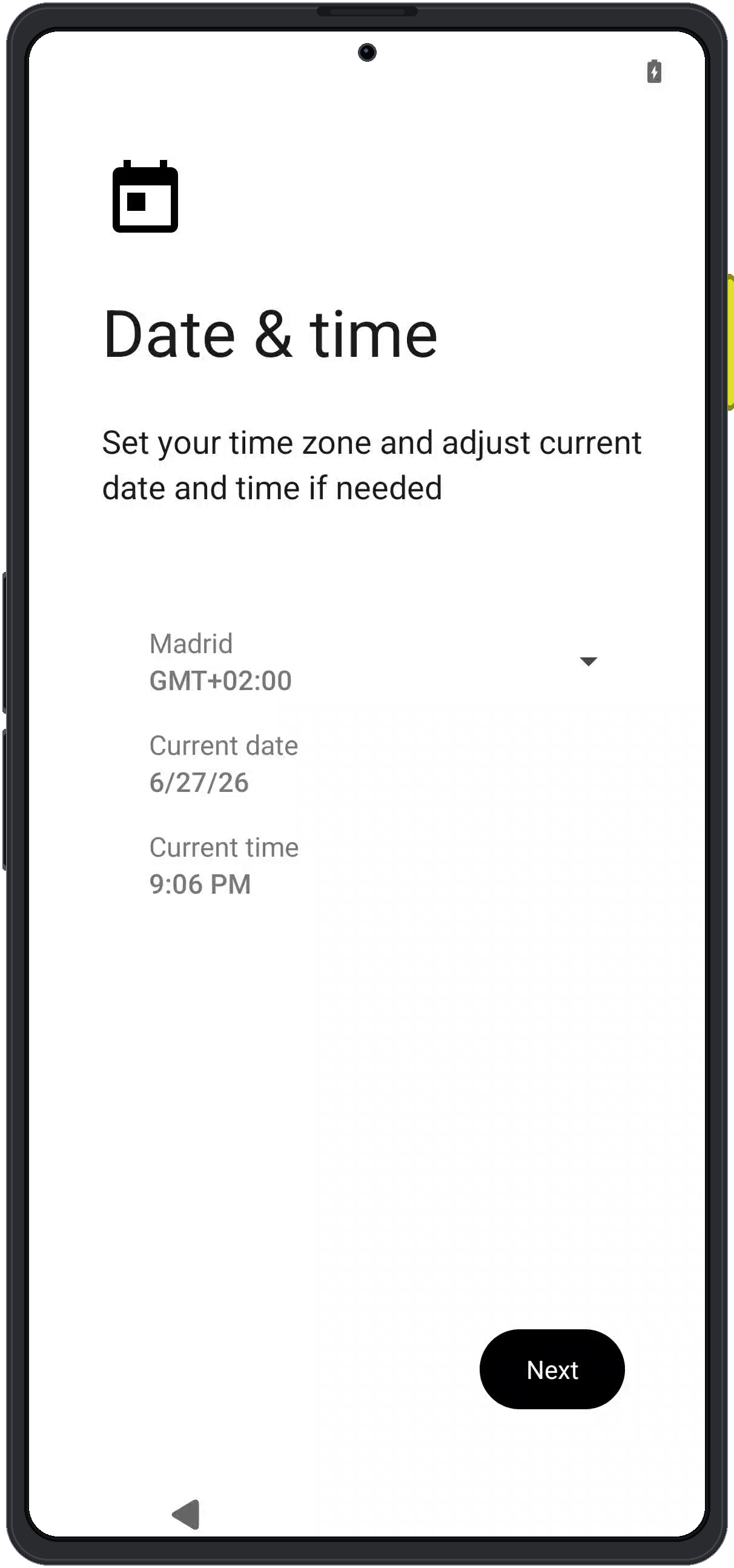
  <Step title="Confirm date and time">
    Confirm the device time zone, date, and time. Correct time configuration supports certificate validation, update verification, security event ordering, and time-sensitive platform workflows.

    <div className="enigm-phone-step">
      <img src="https://mintcdn.com/enigm/_vgDUQTIra3AYjLA/assets/images/os/os-wizard-05-date-time.png?fit=max&auto=format&n=_vgDUQTIra3AYjLA&q=85&s=857c9c0cbf705949b0bb77314516c51f" alt="Enigm OS date and time setup screen" width="1212" height="2588" data-path="assets/images/os/os-wizard-05-date-time.png" />
    </div>
  </Step>

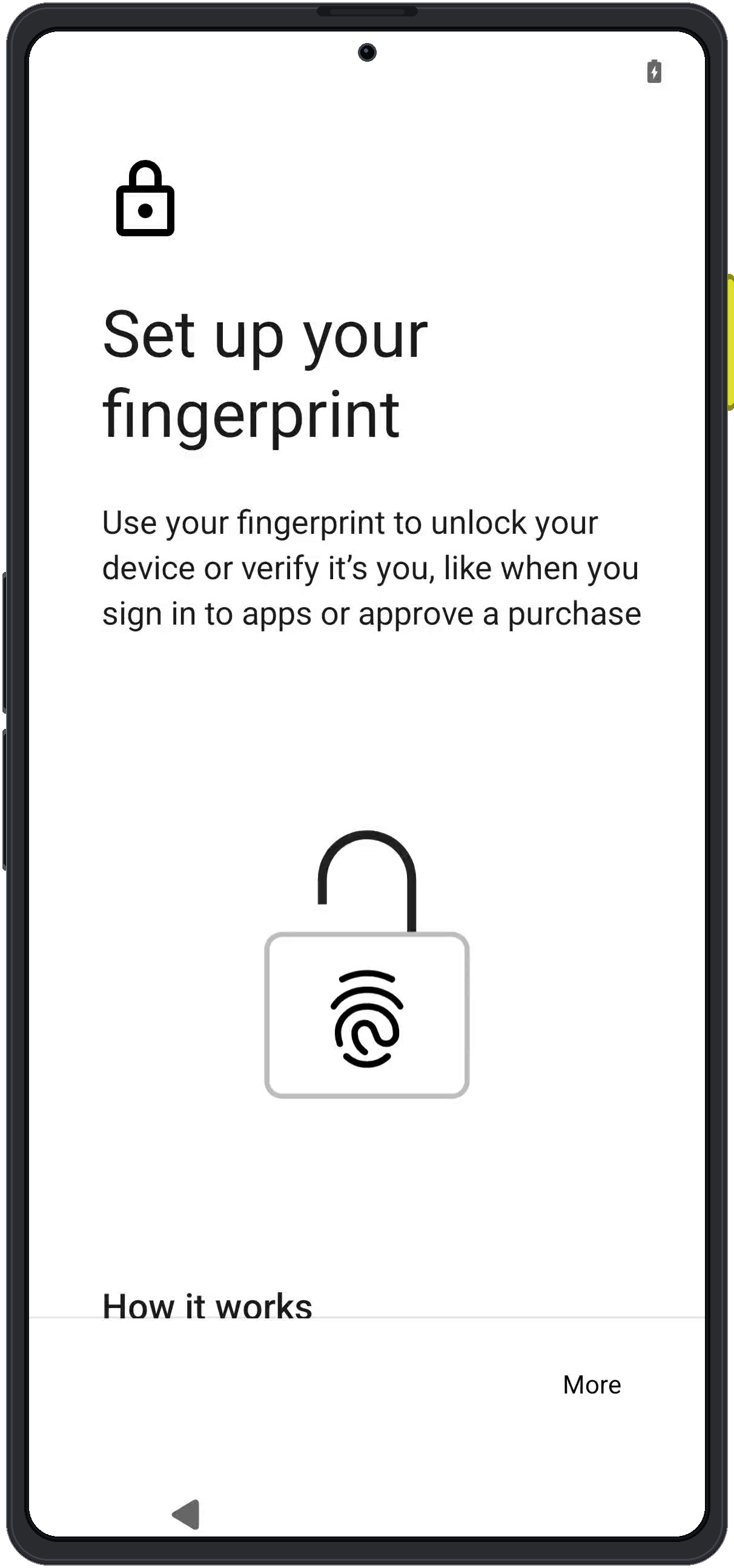
  <Step title="Review fingerprint enrollment">
    Fingerprint enrollment is optional and device-local. Use fingerprint enrollment only when it matches the user or deployment security policy.

    <div className="enigm-phone-step">
      <img src="https://mintcdn.com/enigm/_vgDUQTIra3AYjLA/assets/images/os/os-wizard-07-fingerprint-intro.png?fit=max&auto=format&n=_vgDUQTIra3AYjLA&q=85&s=5a6a74fe7f132ebee733fae17493a9e0" alt="Enigm OS fingerprint enrollment introduction screen" width="1212" height="2588" data-path="assets/images/os/os-wizard-07-fingerprint-intro.png" />
    </div>
  </Step>

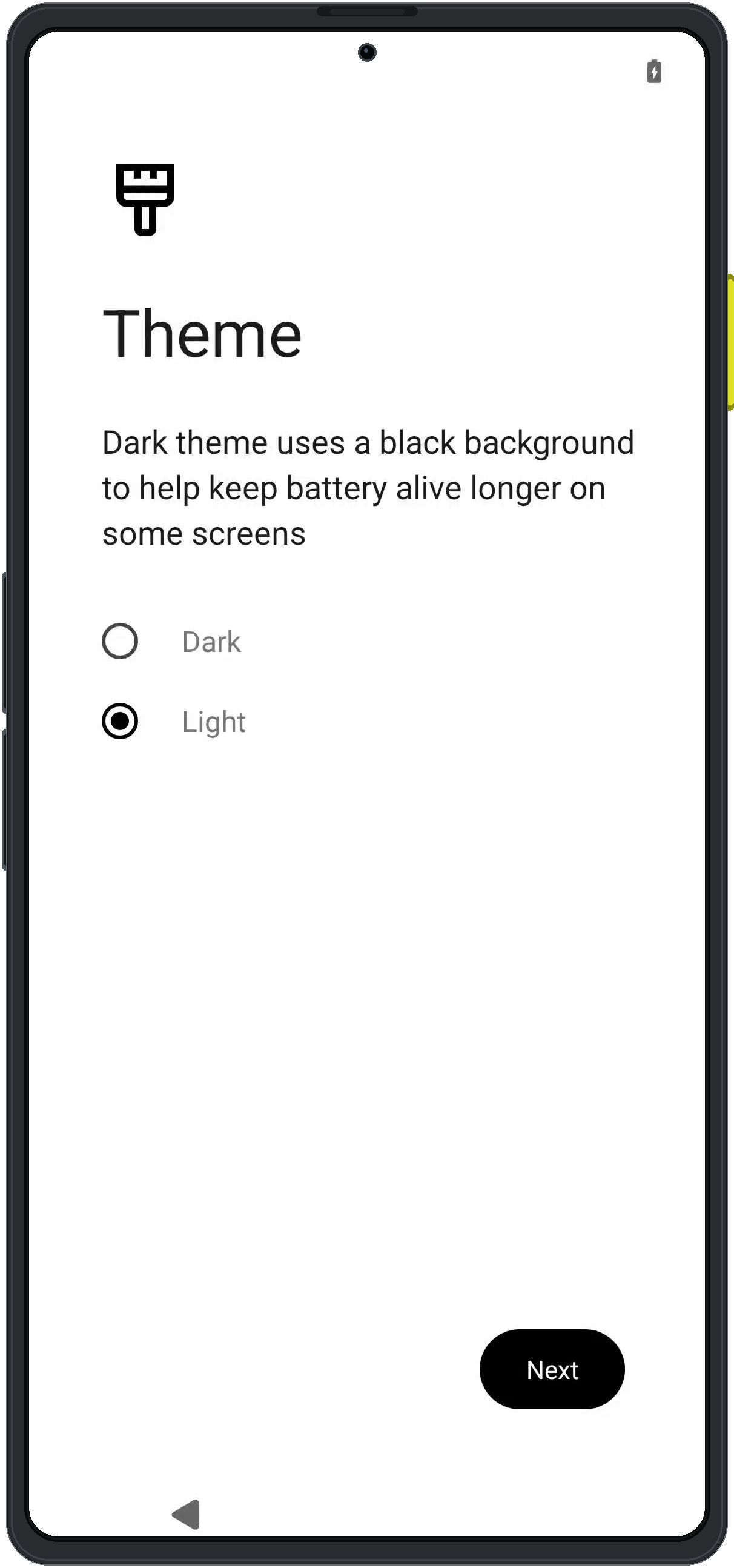
  <Step title="Choose appearance">
    Select the device theme. The theme setting changes local visual appearance only; it does not change Enigm App cryptography, Device Trust, secure messaging, or administrative boundaries.

    <div className="enigm-phone-step">
      <img src="https://mintcdn.com/enigm/_vgDUQTIra3AYjLA/assets/images/os/os-wizard-10-theme.png?fit=max&auto=format&n=_vgDUQTIra3AYjLA&q=85&s=458a02231907c2dfc8be591bc08fbe36" alt="Enigm OS theme selection screen" width="1212" height="2588" data-path="assets/images/os/os-wizard-10-theme.png" />
    </div>
  </Step>

  <Step title="Start the Enigm experience">
    The final setup screen starts the Enigm OS device experience. After this point, the device enters the configured Enigm OS environment.

    <div className="enigm-phone-step">
      <img src="https://mintcdn.com/enigm/_vgDUQTIra3AYjLA/assets/images/os/os-wizard-11-final-start.png?fit=max&auto=format&n=_vgDUQTIra3AYjLA&q=85&s=9dabf491c9c433b2515af24c863a6bc1" alt="Enigm OS final start screen" width="1212" height="2588" data-path="assets/images/os/os-wizard-11-final-start.png" />
    </div>
  </Step>

  <Step title="Open Enigm">
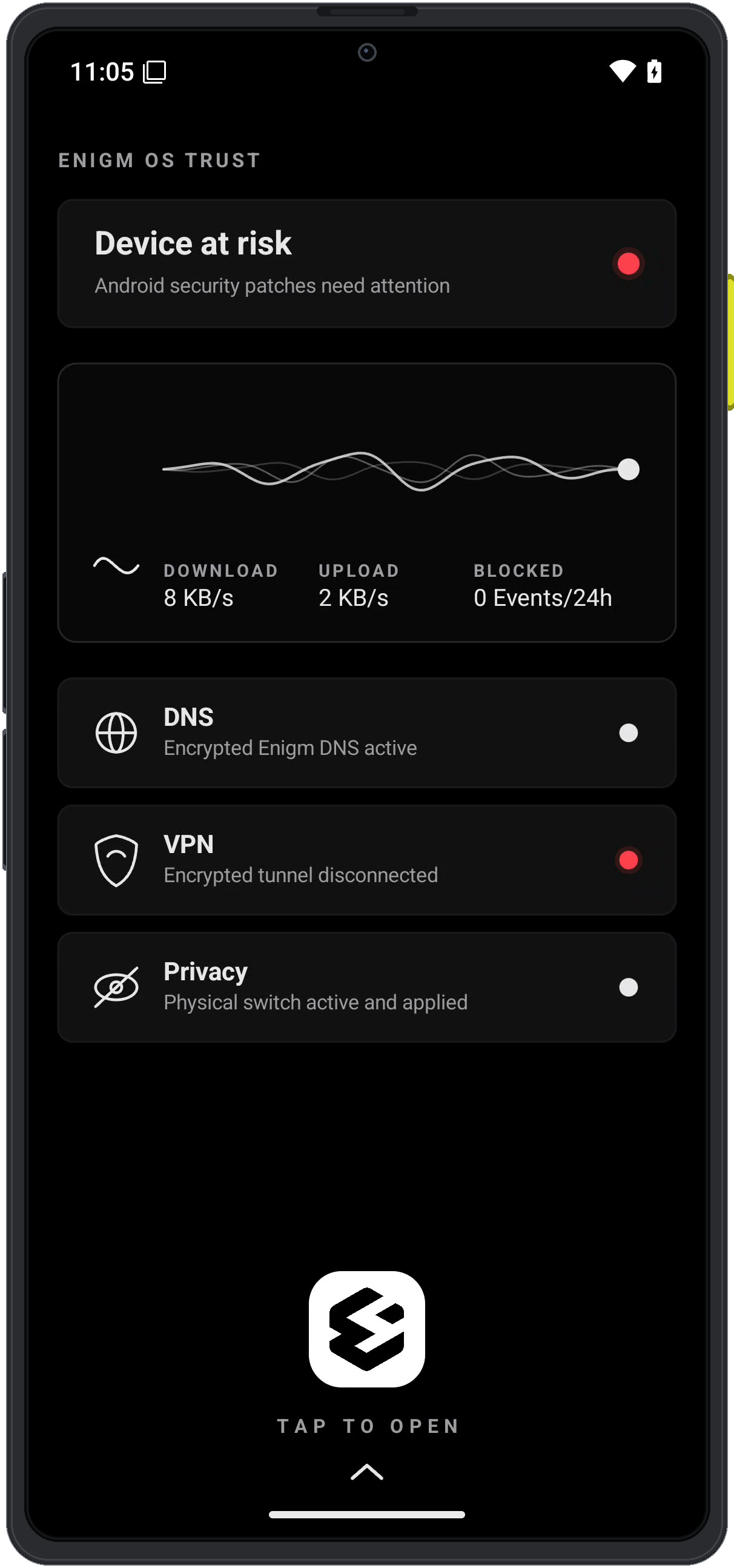
    The launcher shows Enigm OS Trust and device security state. Tap the Enigm icon at the bottom of the screen to open Enigm.

    <div className="enigm-phone-step">
      <img src="https://mintcdn.com/enigm/_vgDUQTIra3AYjLA/assets/images/os/os-wizard-12-launch.png?fit=max&auto=format&n=_vgDUQTIra3AYjLA&q=85&s=214b0e6e442ef8c65498d7738470d90f" alt="Enigm OS launcher showing Trust state and the Enigm open button" width="1212" height="2588" data-path="assets/images/os/os-wizard-12-launch.png" />
    </div>
  </Step>
</Steps>

## Associate Enigm eSIM

After the setup wizard is complete, Enigm eSIM can be associated from Enigm OS settings. The eSIM QR code is shown in Enigm Command after the Enigm eSIM purchase flow is completed.

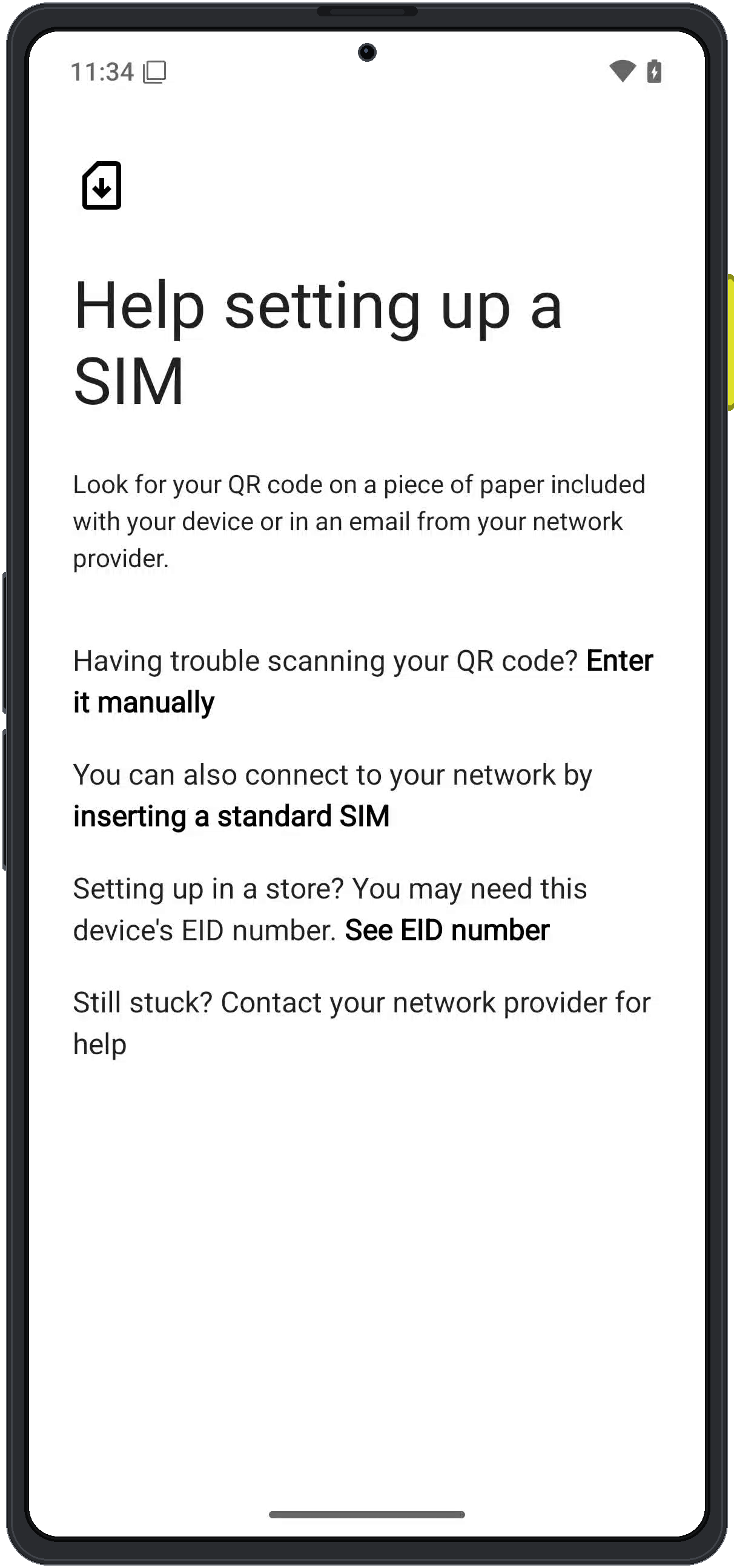
If the QR code cannot be scanned, use the manual entry option shown by the device setup flow and enter the eSIM details provided through Enigm Command.

<Steps>
  <Step title="Open device settings">
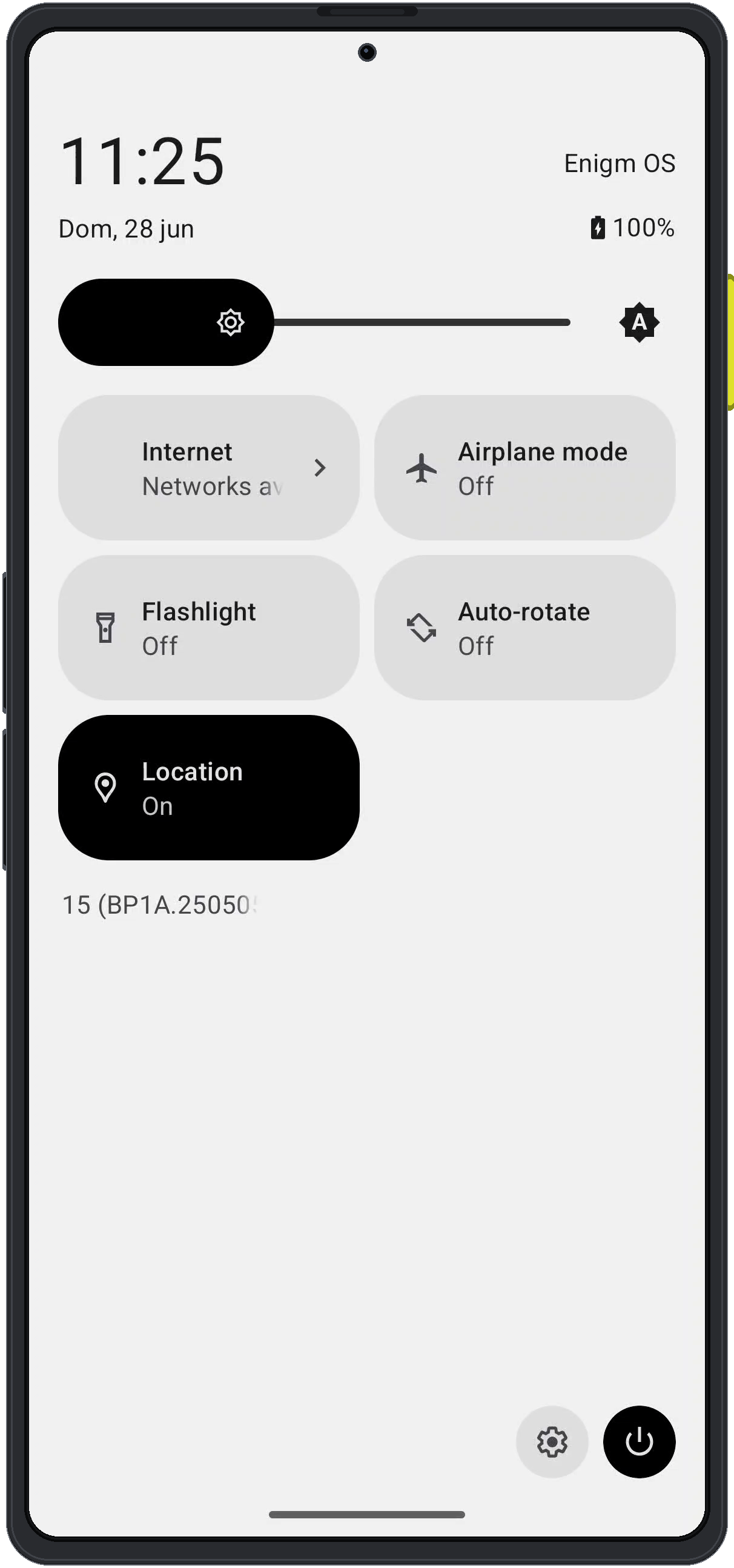
    Pull down the system controls and select the settings icon at the bottom of the panel.

    <div className="enigm-phone-step">
      <img src="https://mintcdn.com/enigm/_vgDUQTIra3AYjLA/assets/images/os/os-esim-01-quick-settings.png?fit=max&auto=format&n=_vgDUQTIra3AYjLA&q=85&s=081f067bec33f9f6e2bf2c3e2e7626ab" alt="Enigm OS quick settings panel showing the settings button" width="1212" height="2588" data-path="assets/images/os/os-esim-01-quick-settings.png" />
    </div>
  </Step>

  <Step title="Open Network and Internet">
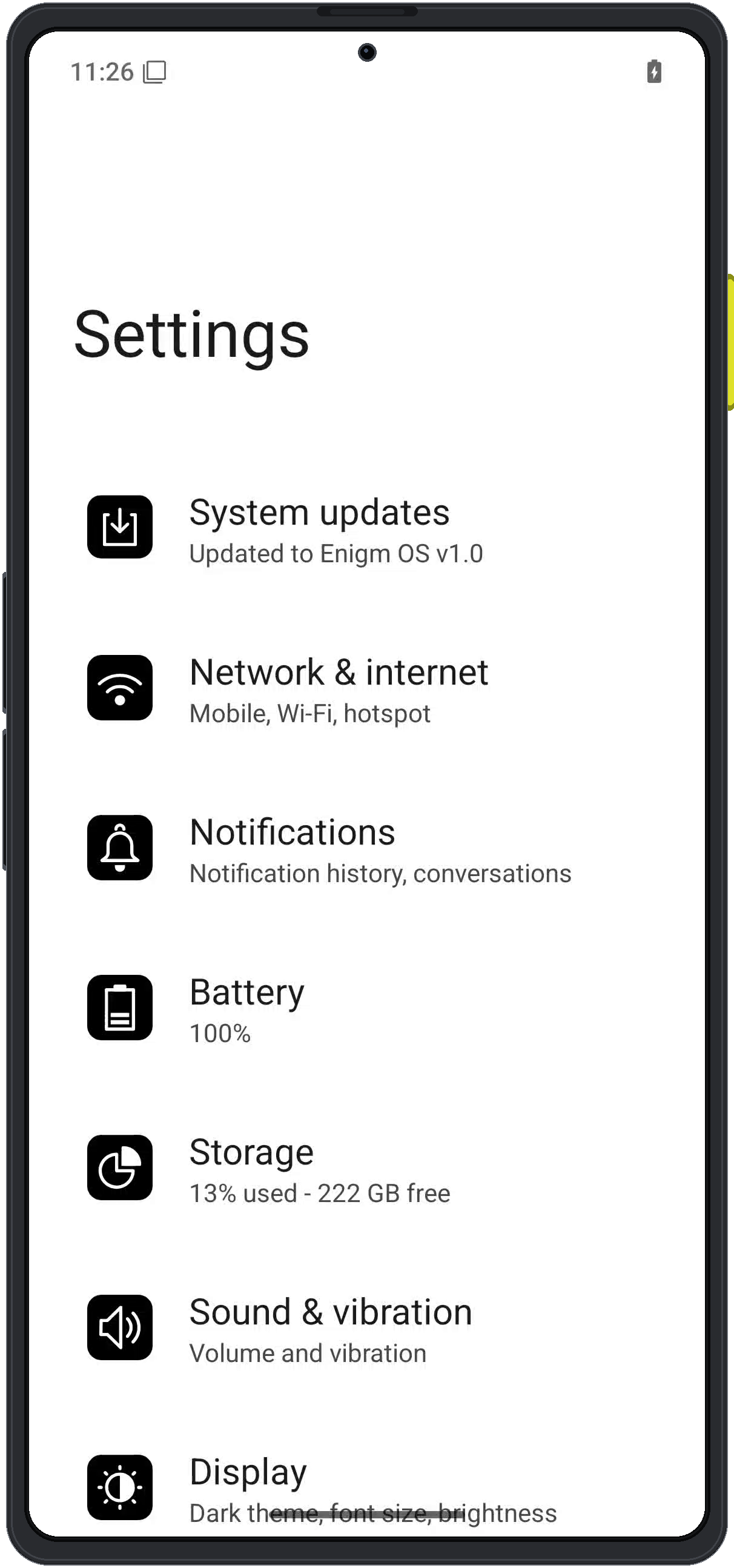
    In settings, select **Network & internet** to manage Wi-Fi, mobile connectivity, SIMs, VPN state, and private DNS.

    <div className="enigm-phone-step">
      <img src="https://mintcdn.com/enigm/_vgDUQTIra3AYjLA/assets/images/os/os-esim-02-settings.png?fit=max&auto=format&n=_vgDUQTIra3AYjLA&q=85&s=346b19c6e1d98eb6405d480960a78c6e" alt="Enigm OS settings screen showing Network and Internet" width="1212" height="2588" data-path="assets/images/os/os-esim-02-settings.png" />
    </div>
  </Step>

  <Step title="Open SIMs">
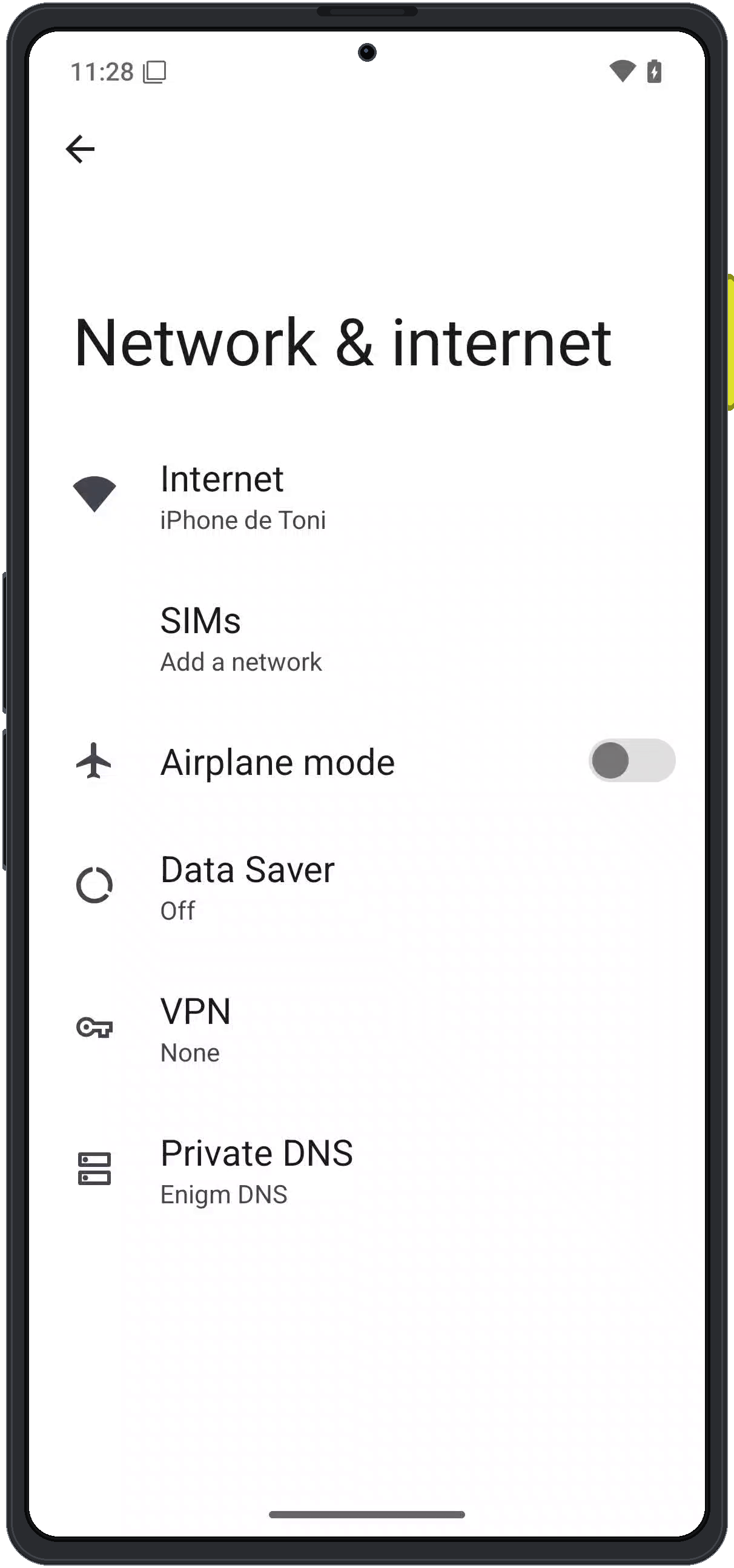
    Select **SIMs** from the Network & internet screen. This is where the device starts the mobile network association flow.

    <div className="enigm-phone-step">
      <img src="https://mintcdn.com/enigm/_vgDUQTIra3AYjLA/assets/images/os/os-esim-03-network-internet.png?fit=max&auto=format&n=_vgDUQTIra3AYjLA&q=85&s=e34f05fe715a6e01f11f42e252c6f027" alt="Enigm OS Network and Internet screen showing SIMs" width="1212" height="2588" data-path="assets/images/os/os-esim-03-network-internet.png" />
    </div>
  </Step>

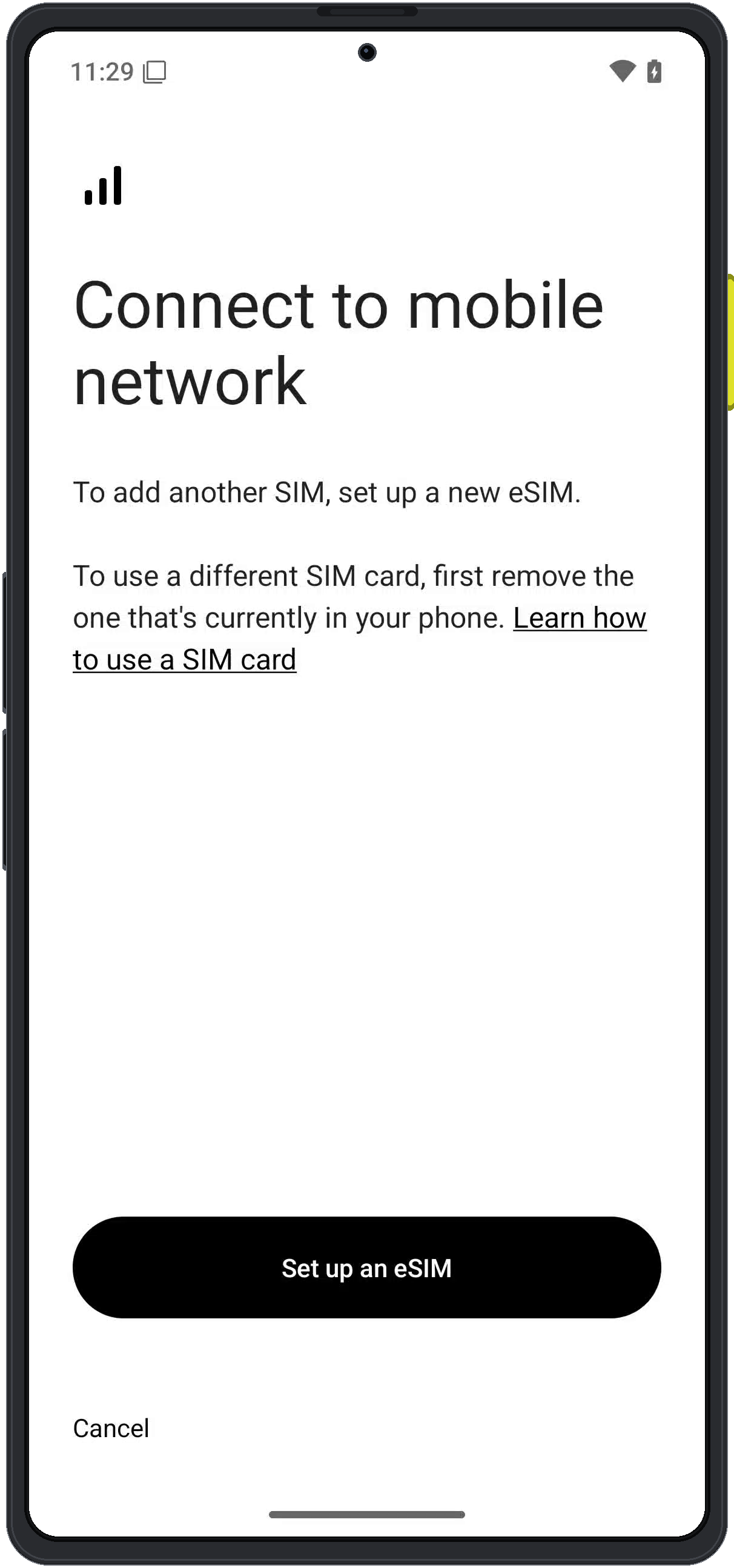
  <Step title="Start eSIM setup">
    Select **Set up an eSIM**. The device will prepare the eSIM association workflow.

    <div className="enigm-phone-step">
      <img src="https://mintcdn.com/enigm/_vgDUQTIra3AYjLA/assets/images/os/os-esim-04-set-up-esim.png?fit=max&auto=format&n=_vgDUQTIra3AYjLA&q=85&s=b724f2005795005d40d16ac390692606" alt="Enigm OS mobile network setup screen with Set up an eSIM" width="1212" height="2588" data-path="assets/images/os/os-esim-04-set-up-esim.png" />
    </div>
  </Step>

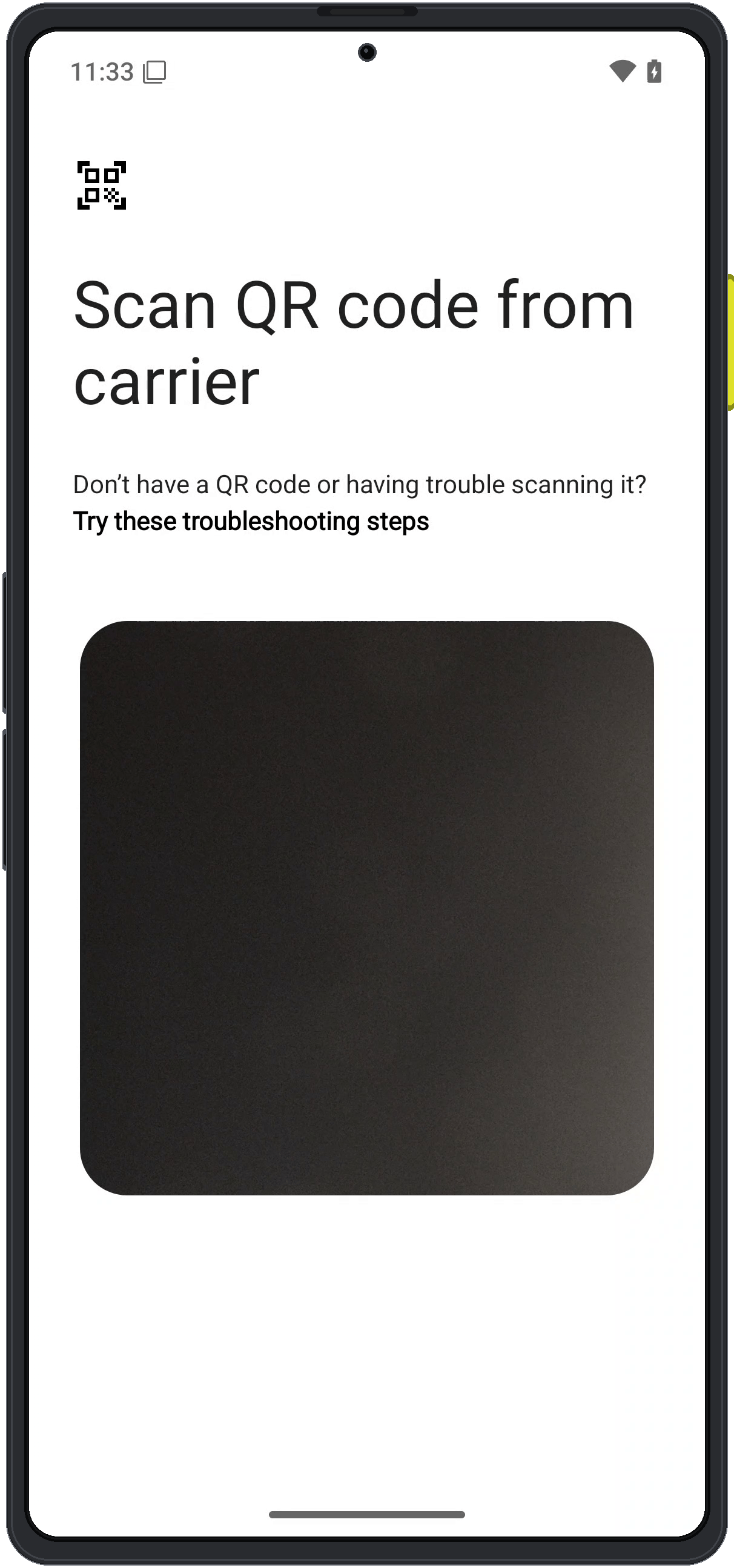
  <Step title="Scan the Enigm eSIM QR code">
    Scan the Enigm eSIM QR code shown in Enigm Command. The QR code is generated as part of the Enigm eSIM management flow after purchase.

    <div className="enigm-phone-step">
      <img src="https://mintcdn.com/enigm/_vgDUQTIra3AYjLA/assets/images/os/os-esim-05-scan-qr.png?fit=max&auto=format&n=_vgDUQTIra3AYjLA&q=85&s=2c336ce635645dd2fce547bae63c951a" alt="Enigm OS eSIM QR code scanning screen" width="1212" height="2588" data-path="assets/images/os/os-esim-05-scan-qr.png" />
    </div>
  </Step>

  <Step title="Use manual entry if needed">
    If scanning is not possible, use the manual entry option and enter the eSIM details shown in Enigm Command.

    <div className="enigm-phone-step">
      <img src="https://mintcdn.com/enigm/_vgDUQTIra3AYjLA/assets/images/os/os-esim-06-manual-entry.png?fit=max&auto=format&n=_vgDUQTIra3AYjLA&q=85&s=daf3382464cdc9427ce93a1107eb2fc7" alt="Enigm OS eSIM setup help screen showing manual entry option" width="1212" height="2588" data-path="assets/images/os/os-esim-06-manual-entry.png" />
    </div>
  </Step>
</Steps>

## Security Notes

The setup wizard establishes the initial device baseline, but it does not replace the broader Enigm security model.

* Enigm App message confidentiality remains based on protected key material and end-to-end encryption.
* Device Trust depends on Enigm OS security services, Trust Security Center, policy state, and controlled update posture.
* Biometric enrollment is a local device unlock method, not an Enigm account recovery mechanism.
* Administrative management does not provide access to message plaintext, call content, media, attachments, or private key material.

See [OS Device Experience and Management](/os/device-experience-management) and [Trust Security Center](/os/trust-security-center) for the architecture model behind setup, device posture, and trust visibility.