> ## Documentation Index
> Fetch the complete documentation index at: https://docs.enigm.io/llms.txt
> Use this file to discover all available pages before exploring further.
# Enigm Link Quickstart
> User guide for opening Enigm Link from the official USB.
Enigm Link is delivered as an official sealed USB product governed through Enigm Command. This quickstart explains the user-facing flow for opening the protected environment, using the secure browser, updating the USB, and starting the isolated Boot OS mode on supported computers.
Enigm Link is a closed product. Users do not install Enigm Link, rebuild the USB, provision boot media, or replace internal files. The user workflow is limited to opening the official USB, selecting the supported mode, and following the product prompts.
## What You Need
Before starting, confirm that you have:
* The official Enigm Link USB.
* A supported computer with a direct USB port.
* Network connectivity.
* An Enigm Link entitlement managed through Enigm Command.
Do not copy the app to another USB, reformat the device, rename product folders, or modify internal files. Official USB validation is part of the Enigm Link trust model.
When Enigm Link is opened from the official USB for the first time, the operating system can request permission to access the USB disk. Accept this permission so Enigm Link can validate the integrity and official identity of the device.
## USB Layout
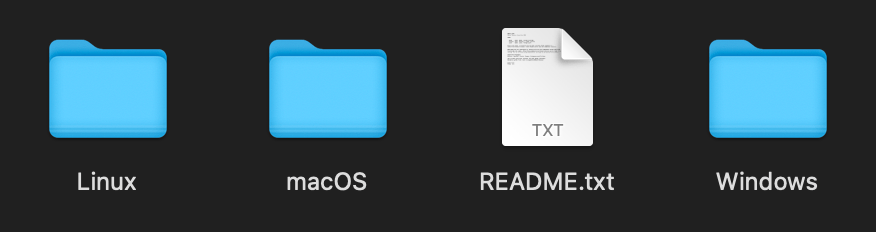
When the USB is opened from the host computer, Enigm Link exposes a simple visible layout:
Desktop app for macOS hosts.
Desktop app for Windows hosts.
Desktop app for Linux hosts.
Basic product guidance.
Select the folder that matches the current host computer. The product remains an official USB device; the visible folders are an entry point, not a manual installation package.
## Open The Secure Browser
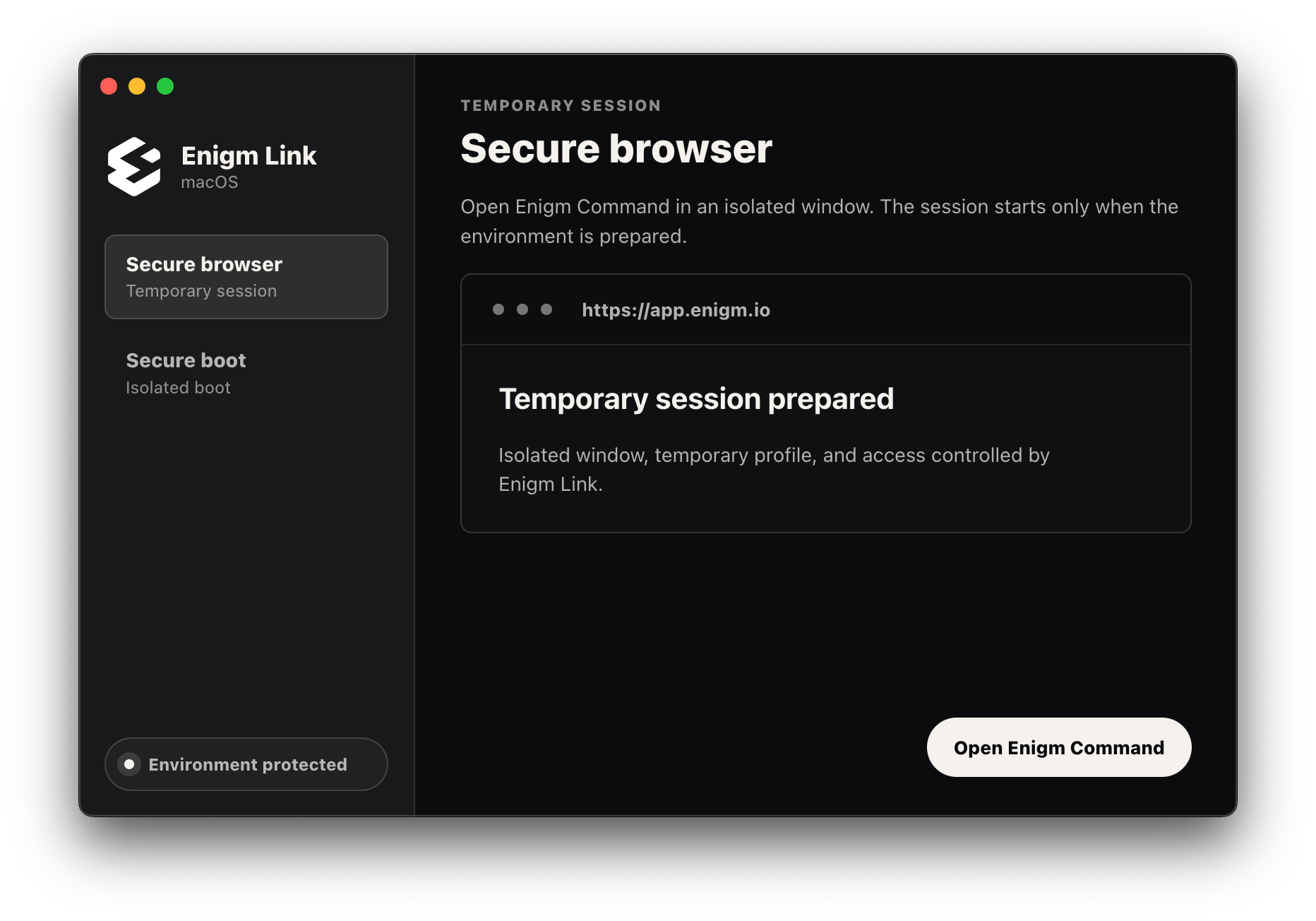
Open Enigm Link from the official USB. The desktop app prepares the protected environment and presents two primary modes:
* **Secure browser**: opens Enigm Command in an isolated temporary browser window.
* **Secure boot**: guides compatible computers into the Enigm Link Boot OS environment.
Use **Secure browser** when you want to access Enigm Command from the protected desktop environment without rebooting the computer.
## Confirm Protected State
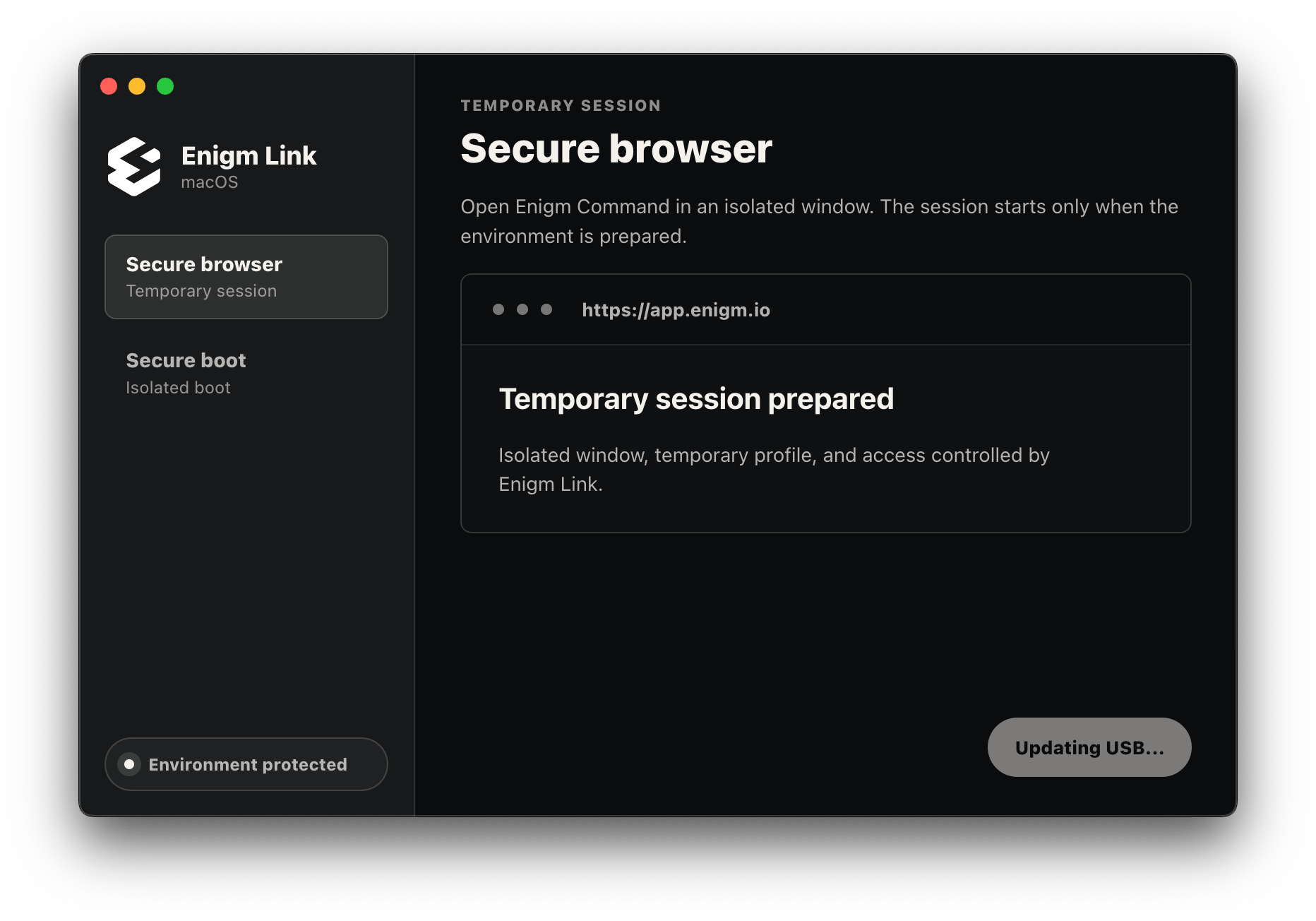
The secure browser flow should show that the temporary session is prepared and that the environment is protected.
The protected state indicates that Enigm Link has prepared the controlled environment and validated the required product state. A normal network connection alone is not enough; protected state depends on Enigm Link environment preparation and product validation.
The lower-left status pill indicates the current environment state:
The protected environment is ready and the secure browser can be opened.
Enigm Link is still preparing the environment. Wait until protection completes.
The environment is not protected. The secure browser remains unavailable until protection is restored.
After protection is ready, select **Open Enigm Command**. Enigm Link opens `https://app.enigm.io` in an isolated window with a temporary browser profile controlled by Enigm Link.
## Browser Navigation
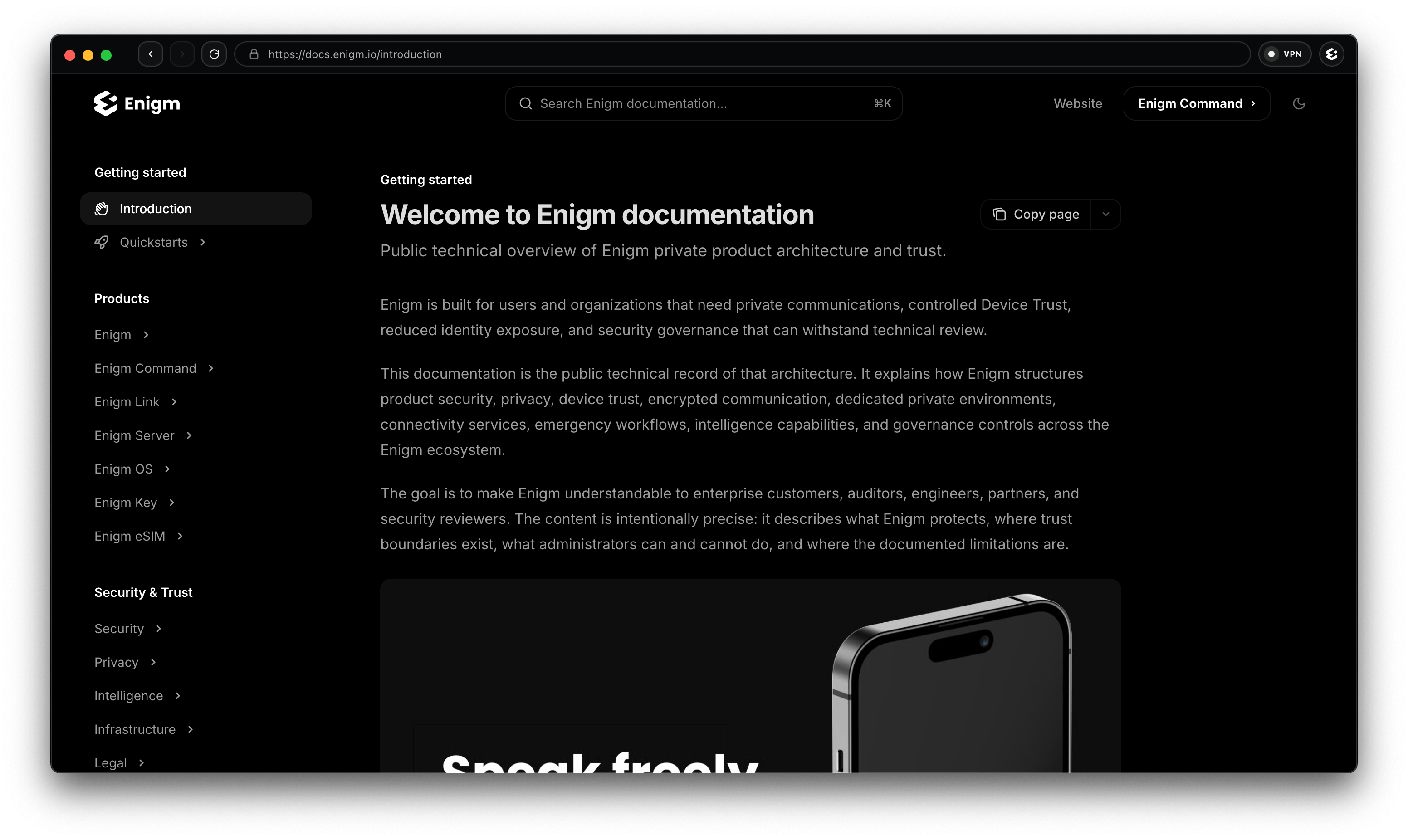
Inside the Enigm Link protected browser, the top-right **VPN** indicator shows the current VPN protection state.
The Enigm logo button next to the VPN indicator opens product shortcuts for:
* Enigm Command.
* Enigm Documentation.
* Enigm Status.
* Enigm Website.
Use these shortcuts to move between official Enigm surfaces without leaving the protected browser context.
## Update Enigm Link
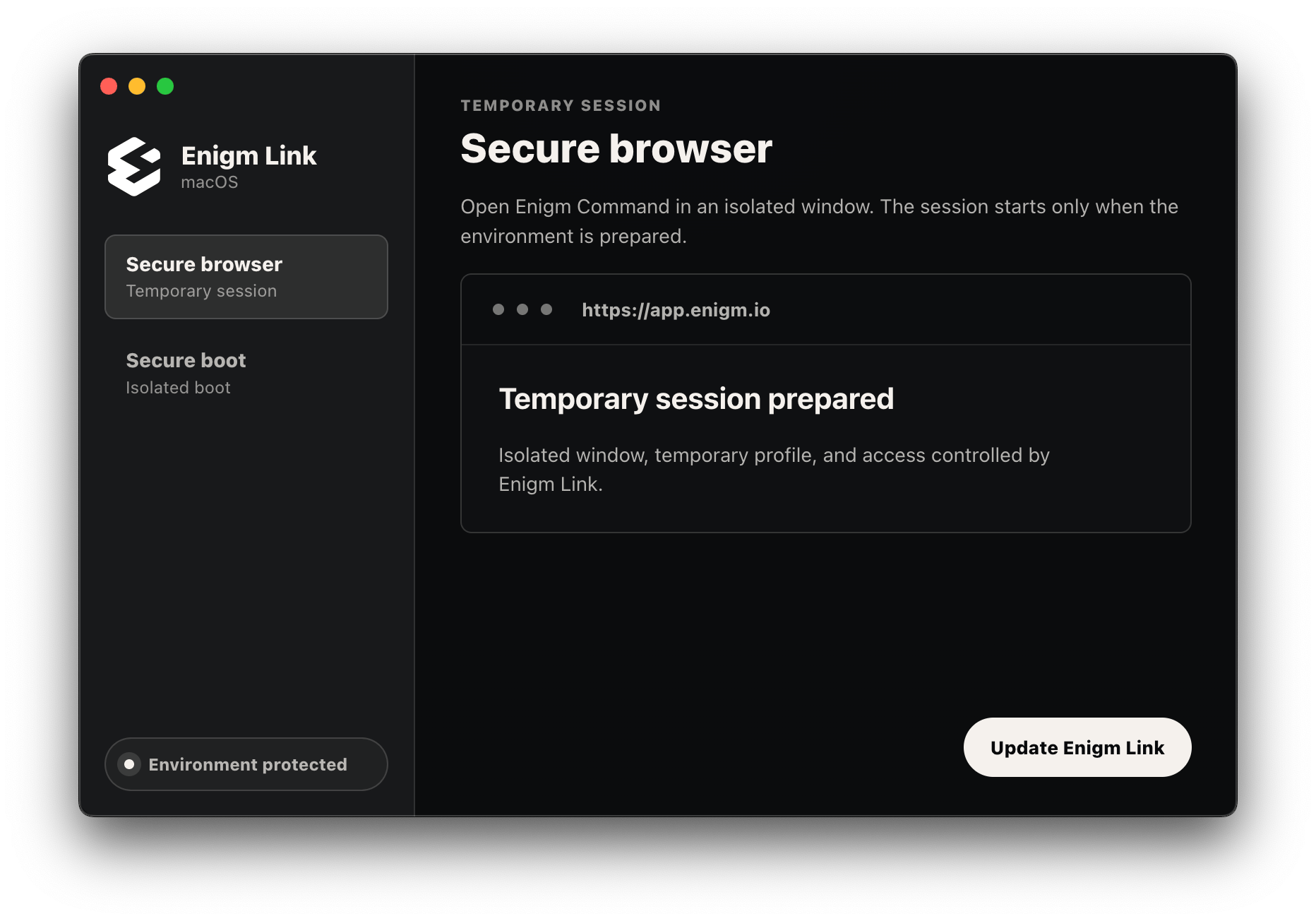
If an update is available, Enigm Link presents an **Update Enigm Link** action inside the product interface.
Use the in-product update action only. Do not replace files manually.
Enigm Link updates can take approximately five minutes. Keep the USB connected, wait for the app to close and reopen automatically, and do not interrupt the update while the USB is being updated.
During update:
* Keep the USB connected.
* Keep the app open.
* Wait until the update state completes.
* Do not rename folders or move files while the update is running.
The update flow is designed to preserve official USB identity and apply authorized product updates through the Enigm Link lifecycle model.
## Verify Product Version
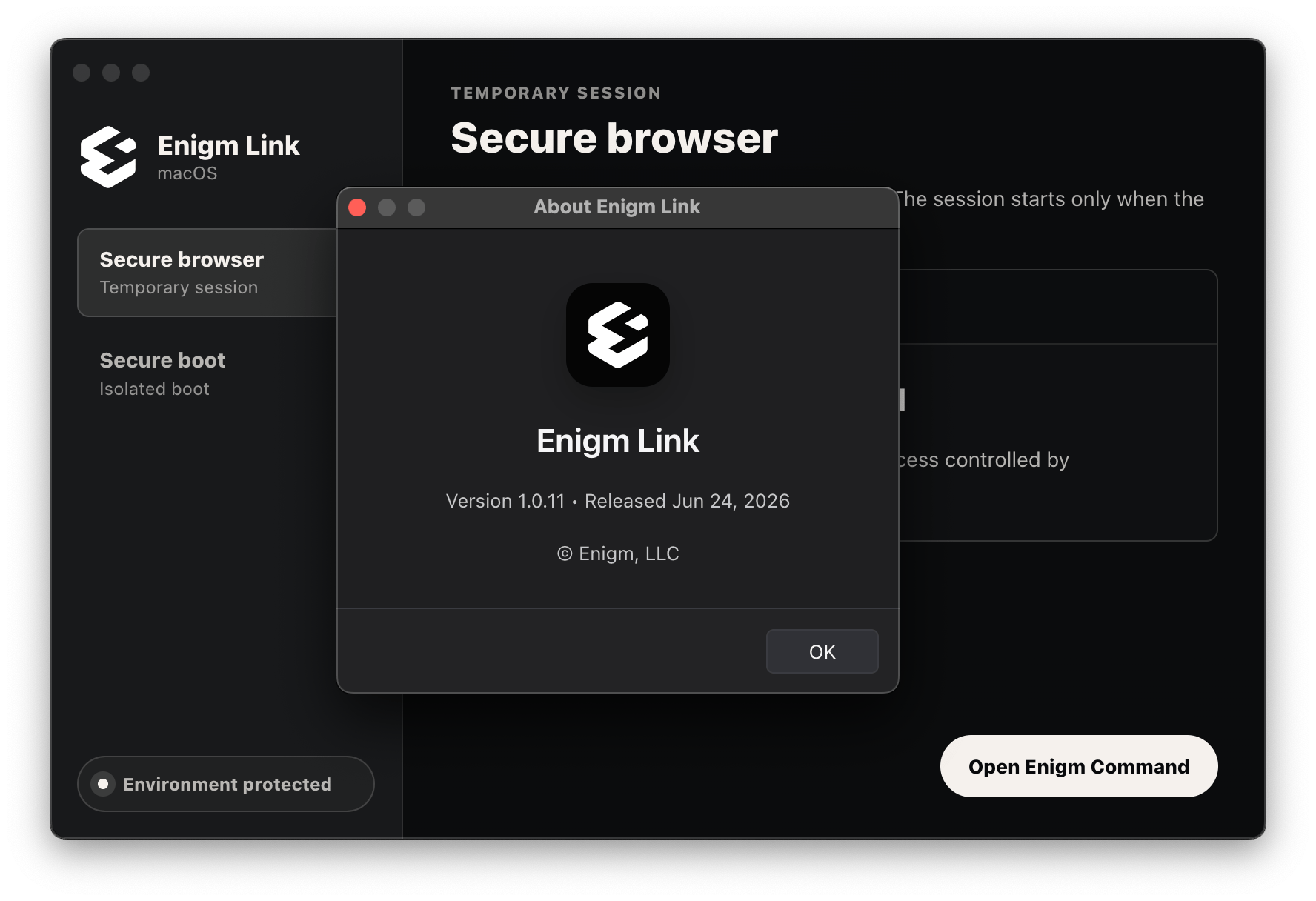
The Enigm Link app includes an About dialog with the current product version.
The current public desktop app version shown in the product is `1.0.11`, released on June 24, 2026.
Version information is useful for support and entitlement review through Enigm Command. It does not expose private user communications or Enigm account content.
## Start Boot OS Mode
Use **Secure boot** when you want to start Enigm Link Boot OS from the official USB on a compatible computer.
Current Boot OS support:
Supported.
Supported.
Not supported for Boot OS USB in the current build.
Apple Silicon users should use the normal macOS Enigm Link desktop app.
## Secure Boot Flow
The secure boot flow is intentionally guided. Follow the product prompts in order.
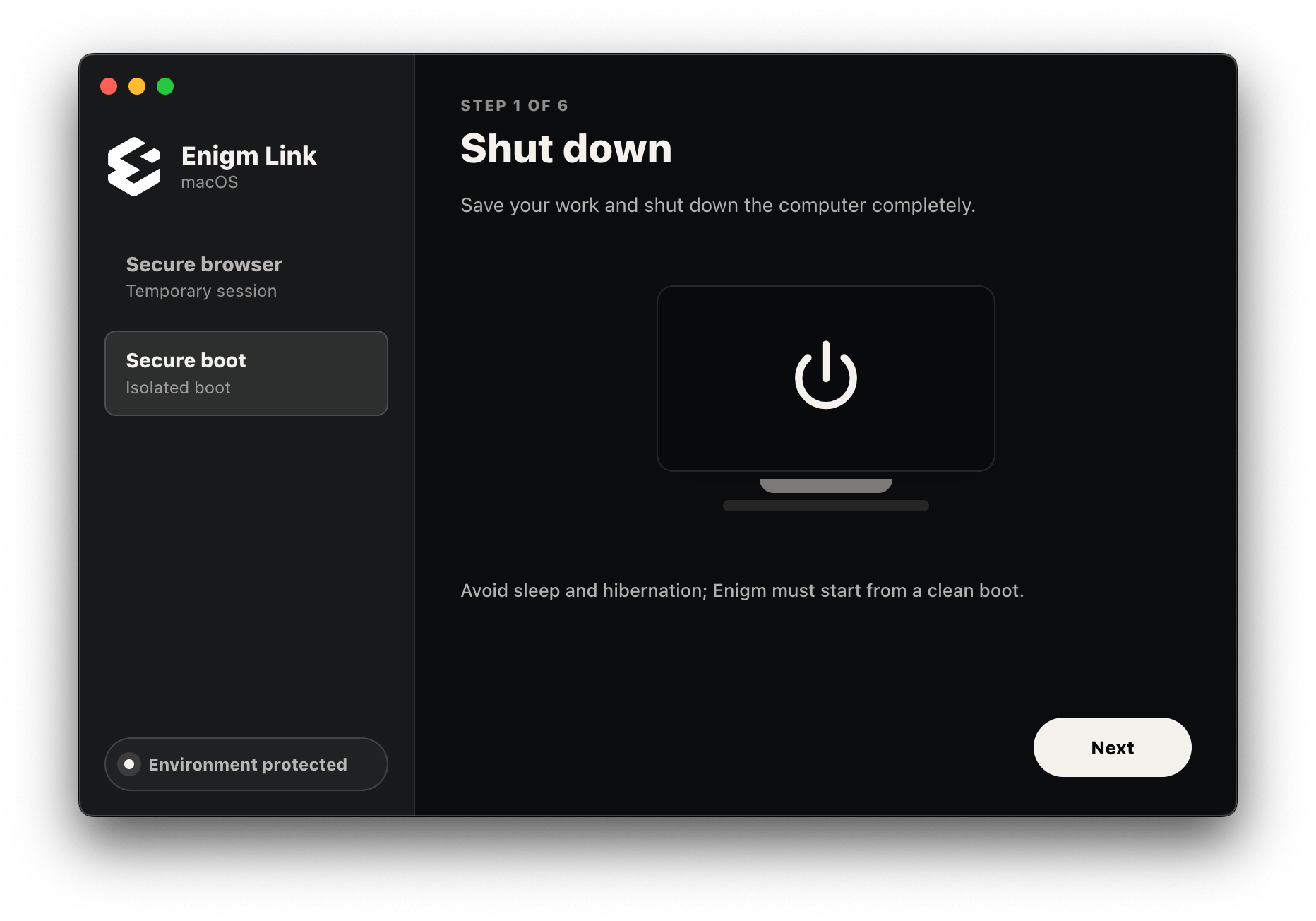
Save your work and shut down the computer. Do not use sleep or hibernation. Enigm Link Boot OS should start from a clean boot.
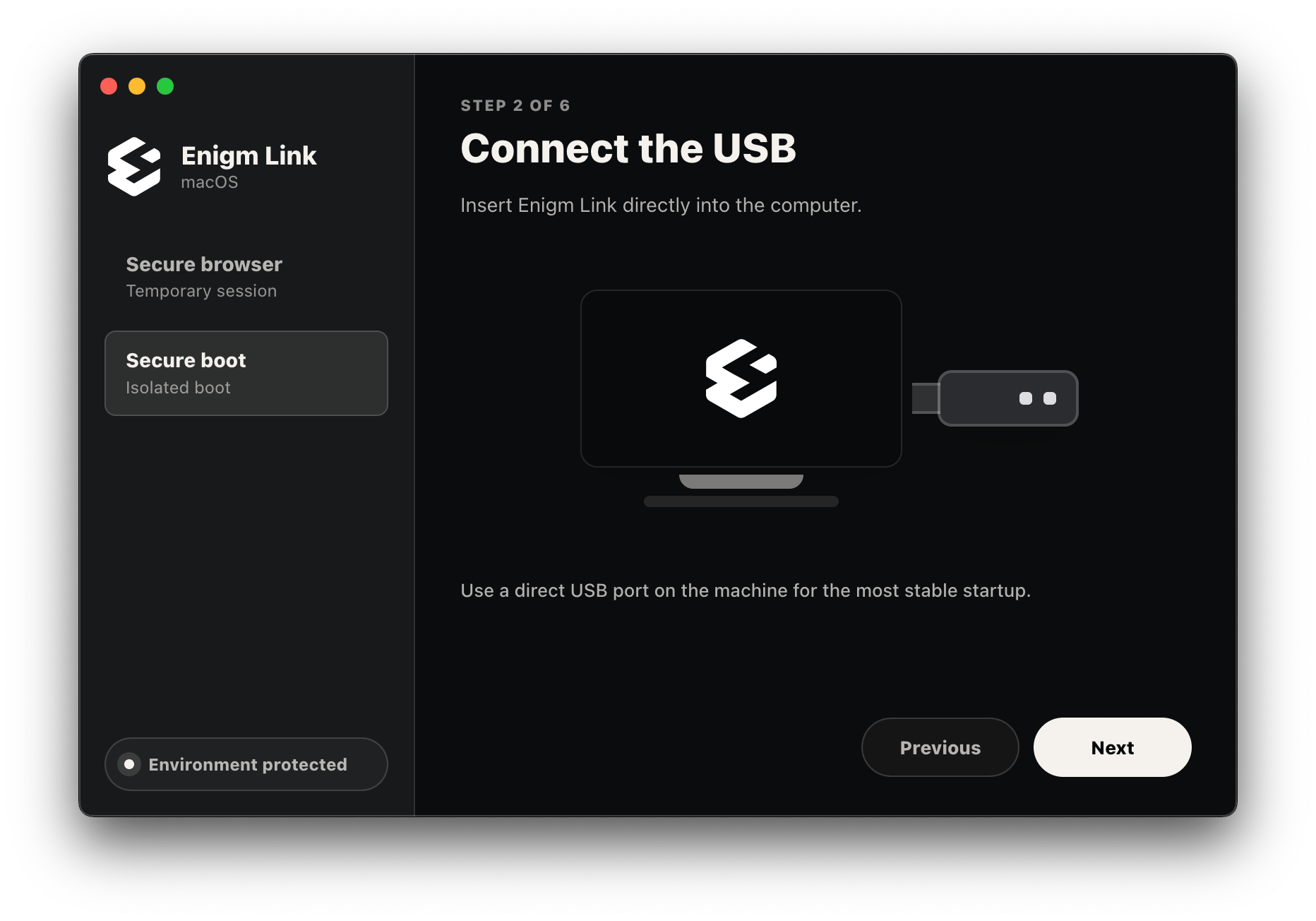
Insert the official Enigm Link USB directly into the computer. A direct USB port is preferred for the most stable startup.
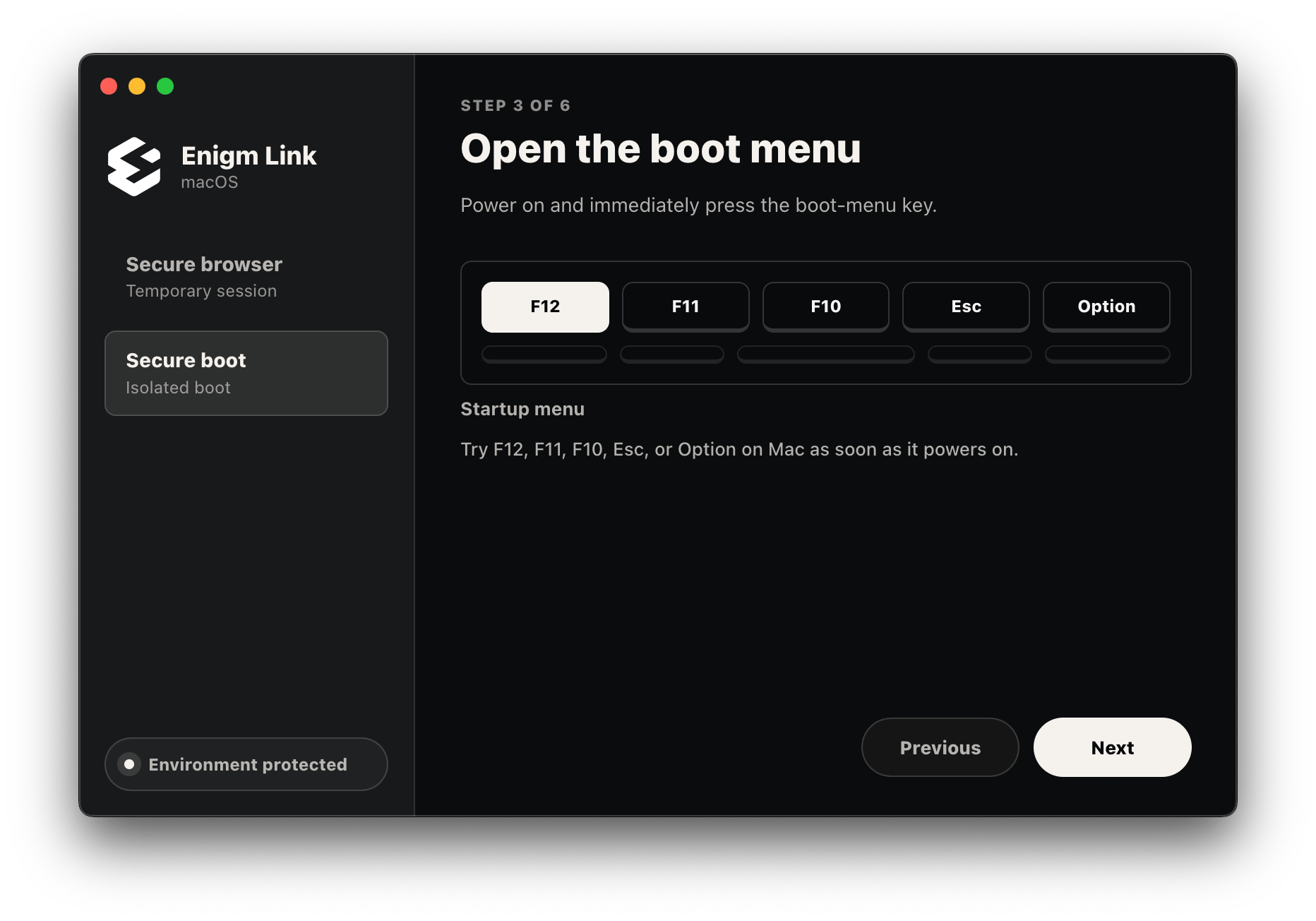
Power on the computer and open the boot menu immediately. Common keys include `F12`, `F11`, `F10`, `Esc`, or `Option` on Mac.
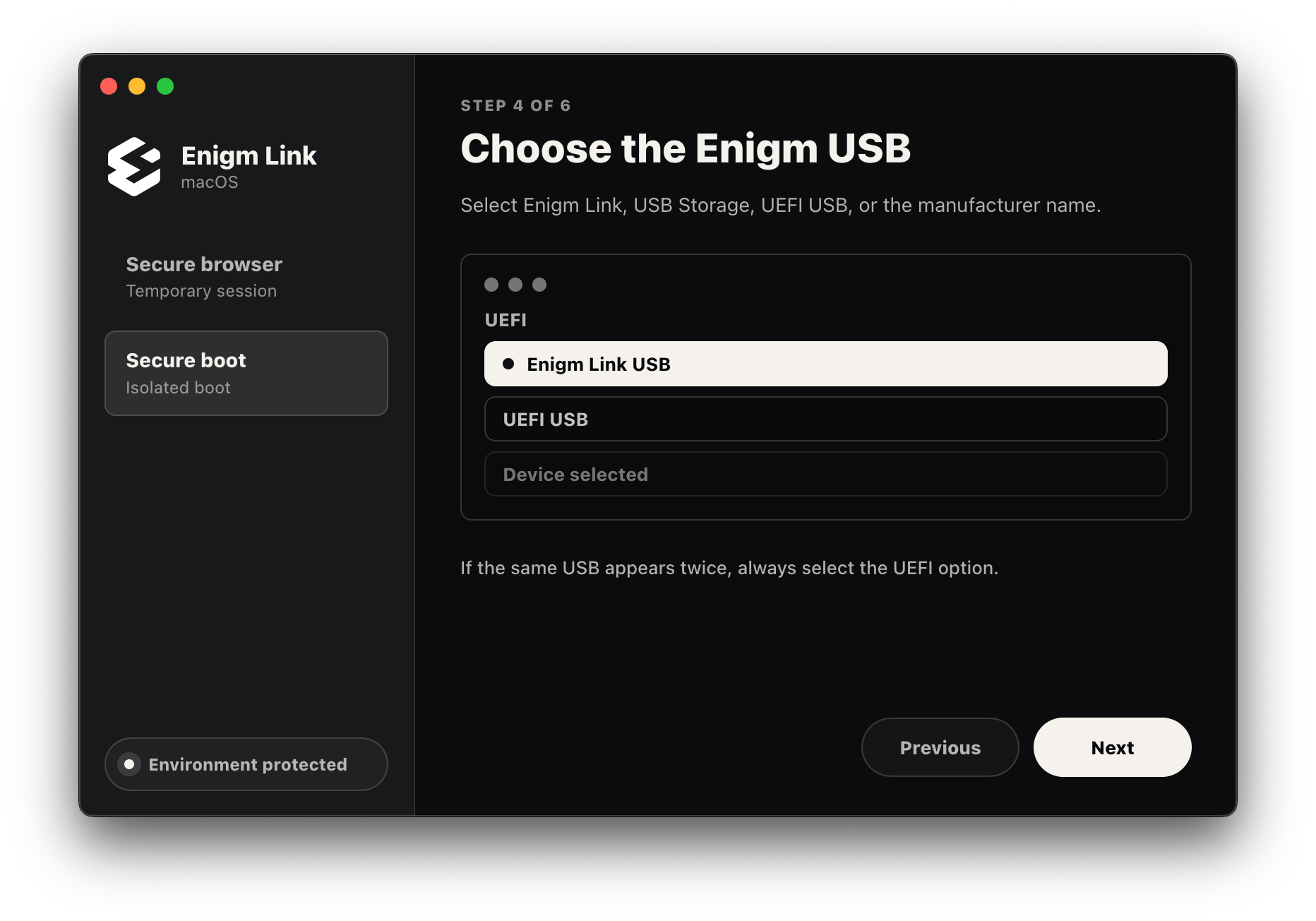
Select the Enigm Link USB entry. If the same USB appears twice, select the `UEFI` option.
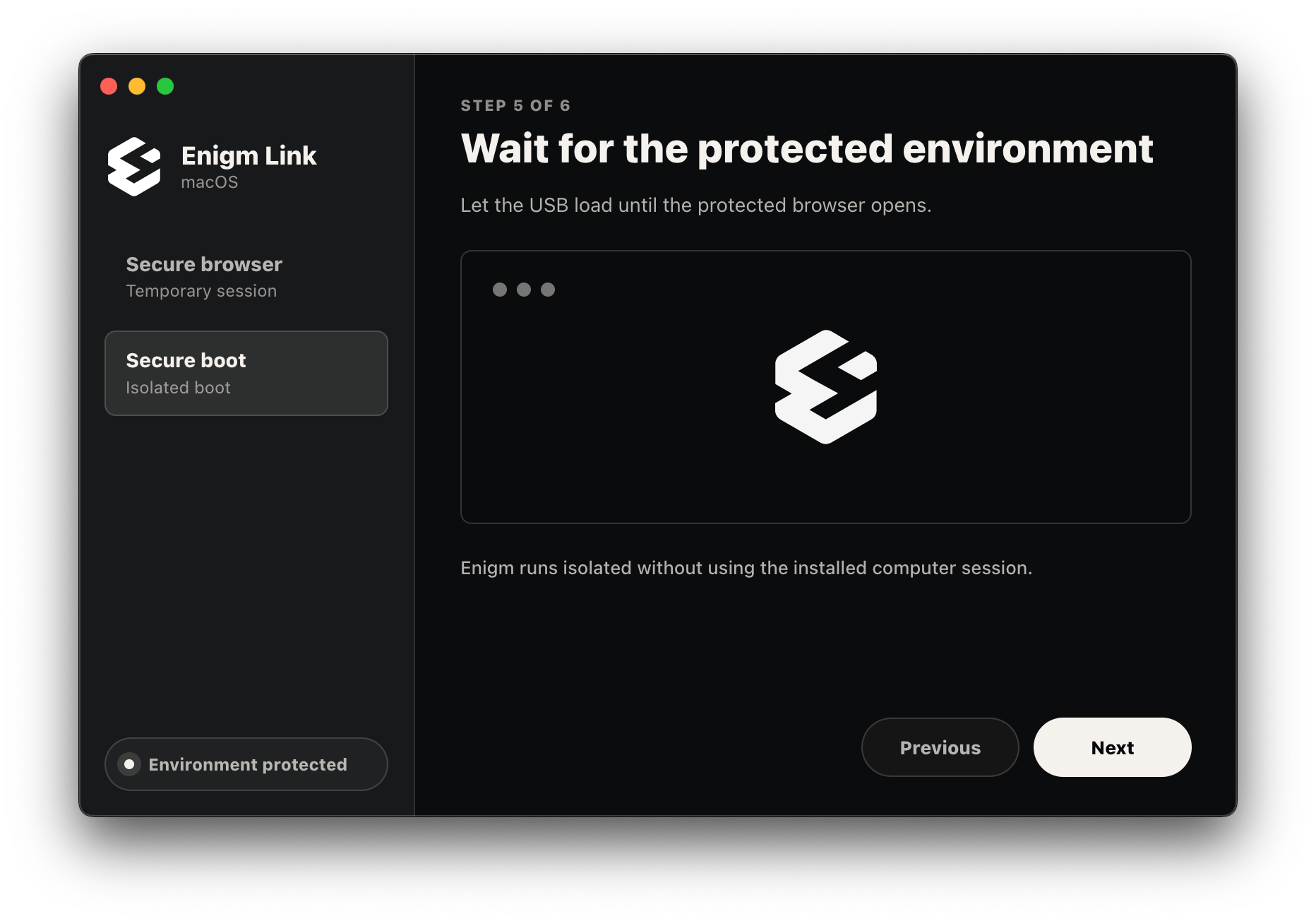
Let the USB load until the protected browser opens. Enigm Link runs isolated from the installed computer session.
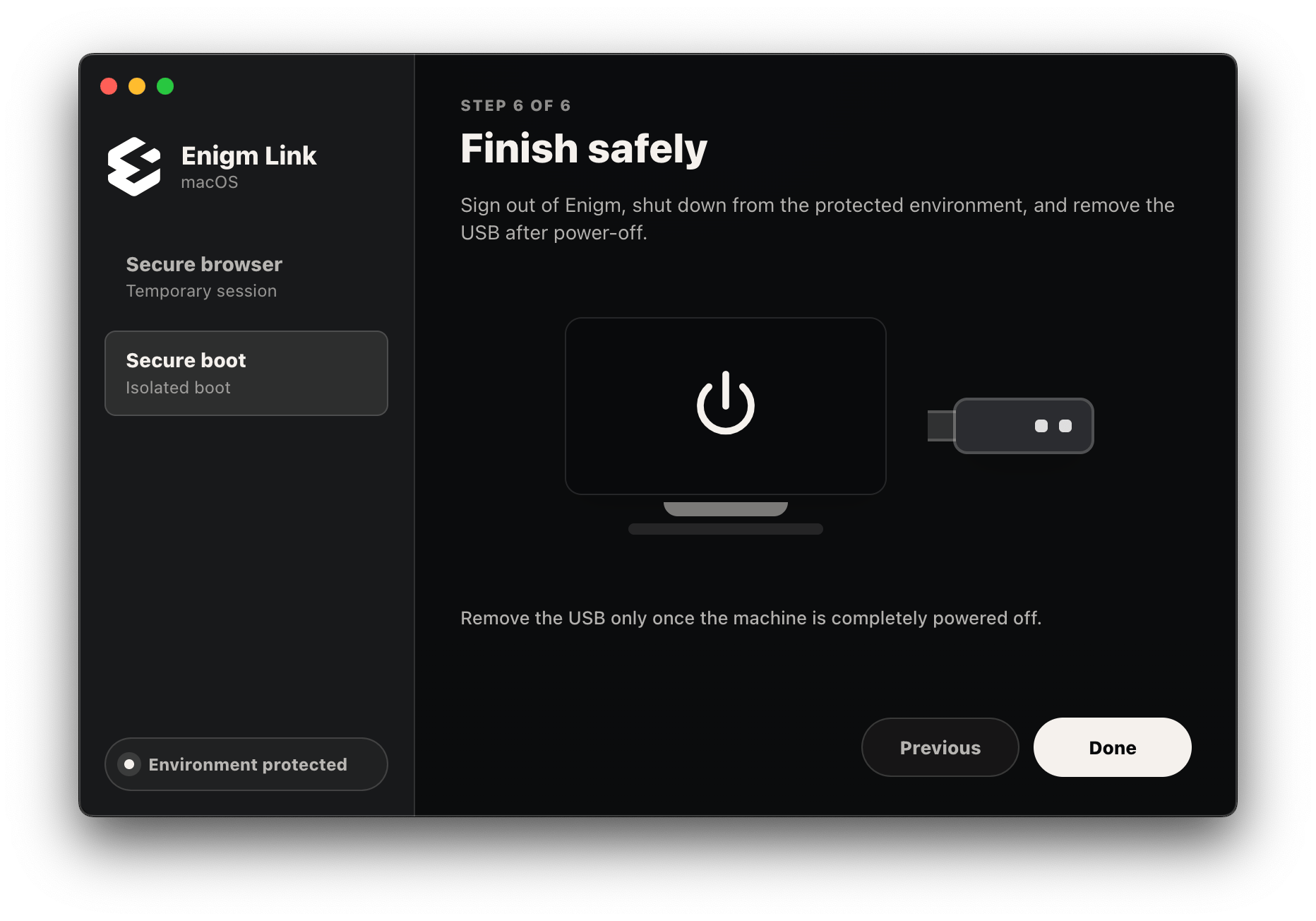
Sign out of Enigm, shut down from the protected environment, and remove the USB only after the machine is completely powered off.
## Use Boot OS Home
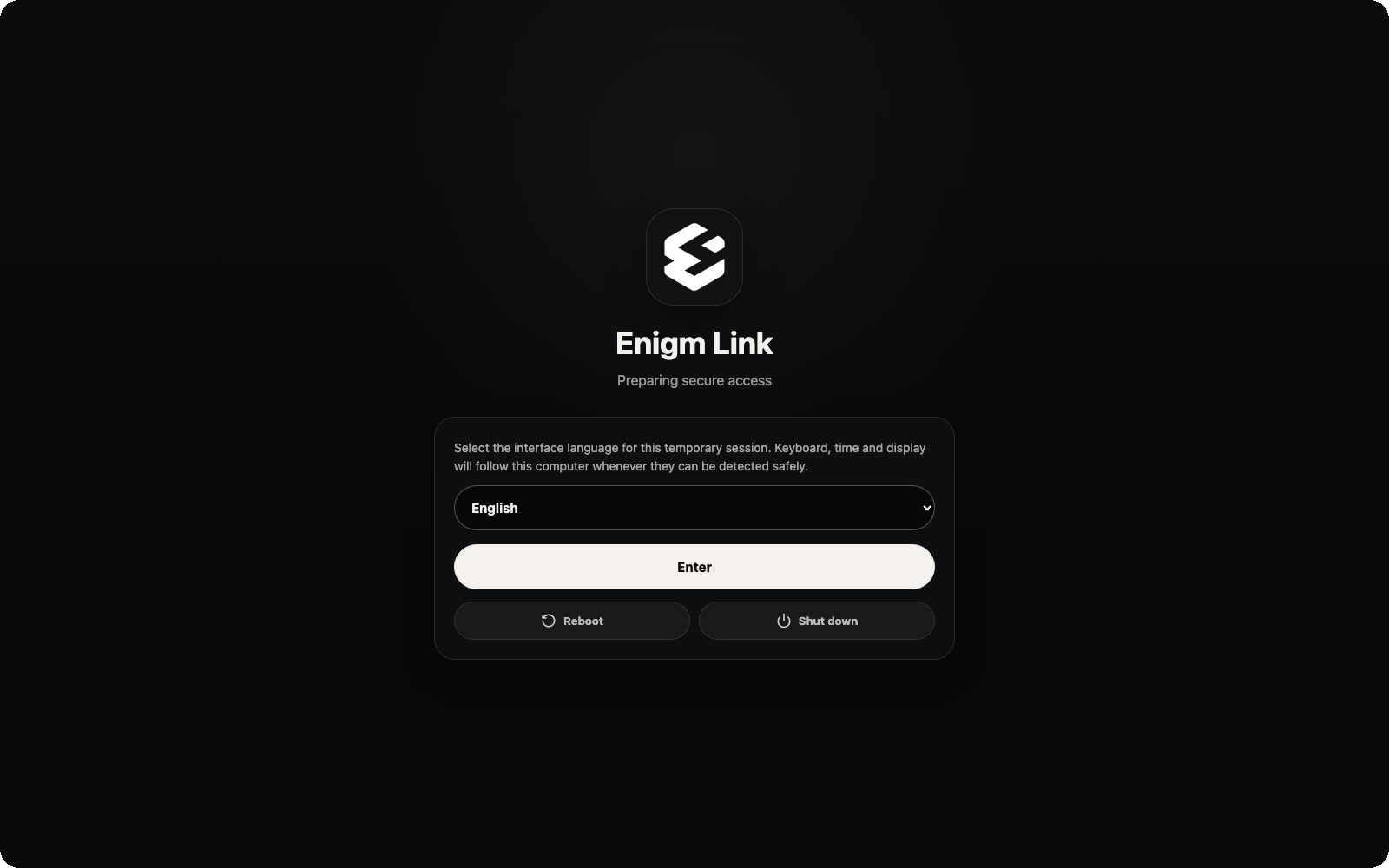
After Enigm Link Boot OS finishes loading, the first screen asks you to select the interface language for the temporary session. Select the language and continue.
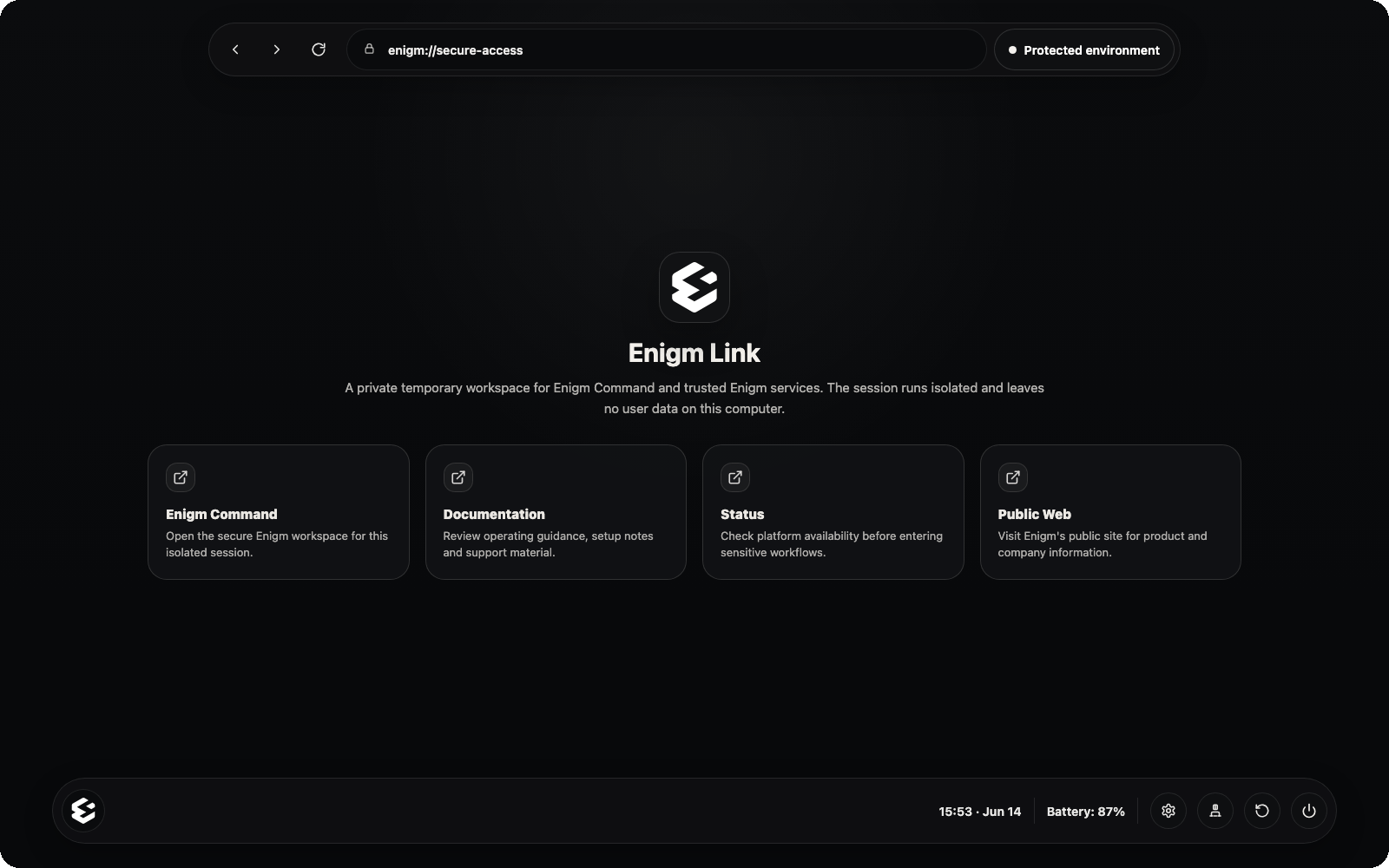
When the protected environment is ready, Boot OS opens the Enigm Link Home screen. The Home screen provides four official navigation cards:
Opens Enigm Command inside the protected Boot OS session.
Opens Enigm documentation and support material.
Opens Enigm platform availability information.
Opens the public Enigm website.
The Enigm logo button in the bottom bar always returns to the Home screen with the official navigation cards.
The left side of the top navigation bar provides browser controls for back, forward, and reload. The address area shows the current page, and the status indicator on the right shows whether the Boot OS environment is protected.
The right side of the bottom bar provides system controls:
* **Power**: shuts down the protected Boot OS session.
* **Restart**: restarts the Boot OS environment.
* **Network**: opens network controls and Wi-Fi connection options.
* **Settings**: opens language, keyboard, and time zone settings.
If an update is available, Boot OS presents an update action in the interface. Run updates only through the Enigm Link product flow and keep the USB connected until completion.
## Finish Safely
When the session is complete:
1. Sign out of Enigm Command.
2. Close the secure browser or shut down from the protected Boot OS environment.
3. Wait until the computer is fully powered off before removing the USB.
Removing the USB during an active update or boot session can interrupt the protected environment.
## Troubleshooting
Common user-facing cases:
* **The environment is not protected**: wait for Enigm Link to finish preparing the environment, then retry from the official USB.
* **The update button appears**: run the update from inside Enigm Link and keep the USB connected until completion.
* **The USB appears twice in the boot menu**: select the `UEFI` entry.
* **The boot menu does not appear**: restart and try the boot-menu keys shown by the product flow.
* **Apple Silicon does not show USB boot**: use the normal macOS Enigm Link app. Boot OS USB is not supported on Apple Silicon in the current build.
For more detail, see [Link Troubleshooting](/link/troubleshooting).
## Security Boundaries
Enigm Link provides a controlled Enigm access environment, not a guarantee that every host computer, website, or user action is safe.
Enigm Link does not replace:
* Enigm App end-to-end encryption.
* Enigm Command account controls.
* User verification decisions.
* Host-device security awareness.
* Safe handling of downloaded files or credentials.
See [Platform Limitations](/legal/limitations).